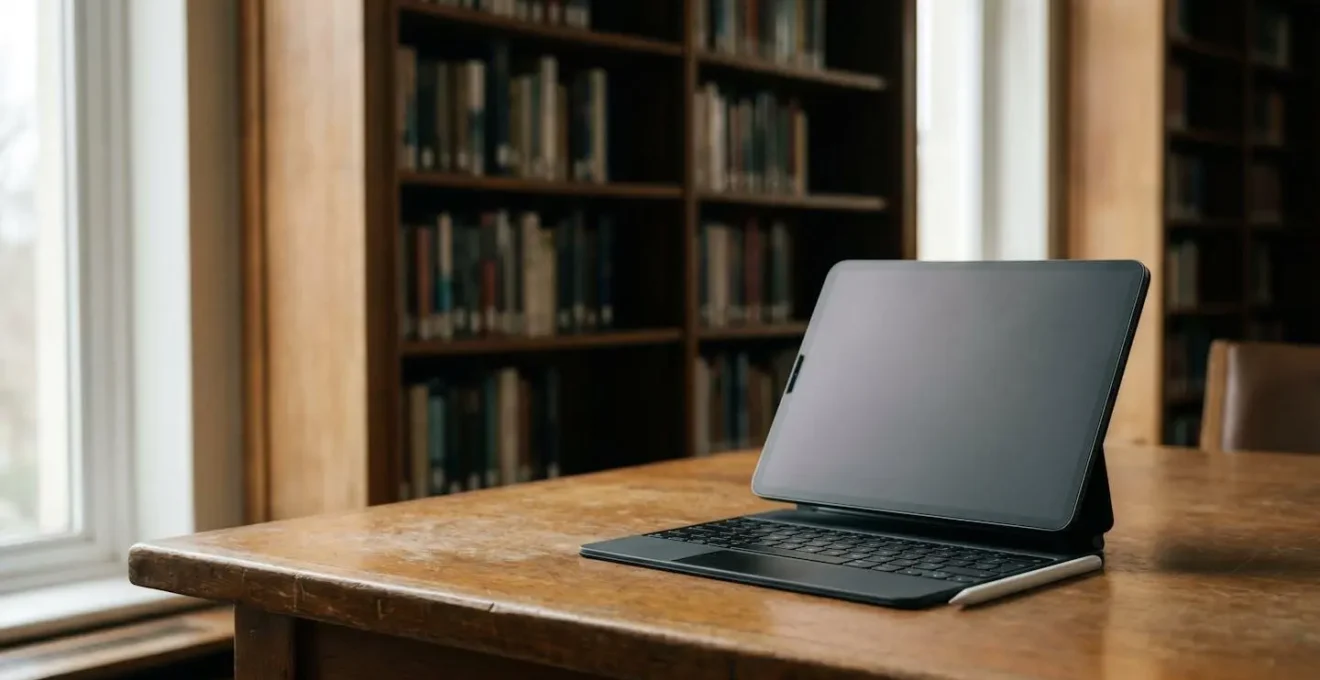
An iPad can replace a laptop for many UK degrees, but success hinges on proactively managing its inherent ‘workflow frictions’, not its raw power.
- Specialised software for STEM, design, or social science degrees remains the biggest roadblock, creating a “software bottleneck” that even the most powerful iPad can’t solve.
- Achieving “ergonomic parity” with a laptop for essay writing requires costly accessories, and ecosystem lock-in can create career friction post-graduation.
Recommendation: Audit your degree’s specific tasks against the workflow challenges detailed here before committing. A MacBook is a safer default, while an iPad is a powerful but specialised choice.
The debate in university halls across the UK is a familiar one: as you prepare for years of lectures, essays, and deadlines, should you invest in a MacBook or can an iPad Pro truly suffice? The pull of the iPad is undeniable—it’s a lightweight, versatile slate perfect for handwritten notes and reviewing PDFs. Many articles will simply list the pros and cons, telling you it “depends on your degree,” a platitude that offers little real guidance when you’re about to spend over a thousand pounds.
The common advice focuses on what the iPad can do in isolation. But a university degree is not an isolated task; it’s a complex system of information management, content creation, and collaboration. The real question isn’t about specs, but about workflow. If the key to making the right choice wasn’t about comparing features, but about understanding the hidden points of ‘workflow friction’ that a tablet-first approach introduces? This is the perspective of a higher education technology consultant.
This guide moves beyond the generic advice. We will provide a strategic framework to audit your specific degree requirements against the real-world challenges of an iPad-only setup. We will analyse file management without a traditional desktop, the reality of multi-window work, the crucial app choices for note-taking, the software bottlenecks that persist, and the long-term considerations of ecosystem lock-in for your future career. This is the deep analysis you need to make a confident decision.
This article provides a detailed breakdown of the critical decision points for any UK student considering an iPad as their primary university device. The following sections will guide you through the specific challenges and trade-offs you must evaluate.
Summary: Evaluating an iPad as a Laptop Replacement for University
- File Management on iPad: How to Organise Coursework Without a “My Documents” Folder?
- Mouse and Monitor Support: Is the iPad Ready for a Full Desktop Setup?
- GoodNotes vs Notability: Which App Is Best for Annotating PDF Lecture Slides?
- The “Full Photoshop” Myth: What Can’t You Do on an iPad for Creative Arts?
- How to Configure Your iPad to Last Through 6 Hours of Back-to-Back Lectures?
- How to Use Your iPad as a Second Mac Screen Without Buying Cables?
- 8GB vs 16GB RAM: Is the Base Model Enough for Adobe Creative Cloud?
- Maximizing Efficiency With iOS Ecosystems: Connecting iPhone and Mac for Work?
File Management on iPad: How to Organise Coursework Without a “My Documents” Folder?
One of the first and most significant points of workflow friction for students moving to an iPad is the absence of a traditional desktop and “My Documents” folder. The iPadOS Files app has matured significantly, but it demands a more deliberate and disciplined approach to organisation than the flexible, and often chaotic, system most are used to on a Mac or PC. Success isn’t automatic; it requires building a system from day one, typically structured around your university’s Virtual Learning Environment (VLE), such as Canvas or Moodle.
Instead of dragging files to a desktop, the iPad-native workflow involves using the ‘Share Sheet’ to save lecture slides, readings, and assignment briefs directly from your browser or email into specific folders within the Files app. These folders should be pre-emptively created and named according to your modules (e.g., “HIST101,” “ECON203”). Integrating cloud services like iCloud Drive, Google Drive, or OneDrive is essential, ensuring your work is backed up and accessible across devices. This setup allows you to save an annotated PDF from GoodNotes directly into the correct module folder, then upload it to Turnitin without ever touching a desktop interface.
Case Study: Post-Graduate Student’s iPad Workflow for UK University VLE
A UK post-graduate student successfully managed their entire Masters program using iPad’s Files app with Canvas VLE integration. They developed a methodology where study guides were downloaded first, saved to Files, and marked up with module information from seminars. Using the Collaborate feature, they made readings accessible across work and personal devices. The key breakthrough was using split-screen mode: displaying PDF sources on one side while handwriting notes on the other, with screenshots of key diagrams inserted directly into notes. This eliminated the need for traditional paper management and enabled efficient coursework submission directly from the Files app to Turnitin.
This demonstrates that while the initial setup requires more thought, a well-structured file management system on an iPad can be incredibly efficient. The friction is front-loaded into creating the system, but the payoff is a streamlined, portable, and highly organised workflow tailored to the academic year.
Mouse and Monitor Support: Is the iPad Ready for a Full Desktop Setup?
For long essay-writing sessions in your university accommodation, the dream is to connect your iPad to an external monitor, keyboard, and mouse, transforming it into a full desktop computer. Apple’s introduction of Stage Manager was a significant step towards this vision, but it comes with its own set of workflow frictions that prevent it from being a seamless laptop replacement. This is where the concept of ergonomic parity—the investment required to make a device as comfortable and functional as a standard laptop—becomes critical.
The primary limitation is in the software itself. While you can extend your display, research reveals that Stage Manager currently limits users to a maximum of four apps running simultaneously on the iPad screen (plus four more on an external display). For a humanities student juggling a Word document, multiple Safari windows for research, a PDF reader with primary sources, and a citation manager like Zotero, this limit can be quickly reached, forcing a frustrating cycle of closing and reopening windows. As the MakeUseOf Editorial Team notes, “It’s also considerably limited by the fixed window sizes and placements and the cap of just four open apps at a time, without an external display.” This isn’t the boundless multitasking environment of a true desktop OS.
Furthermore, achieving this setup involves significant extra cost. A quality external monitor, an ergonomic mouse, and a mechanical keyboard can easily add £200-£400 to your initial iPad investment. This is the hidden cost of achieving ergonomic parity. While the resulting setup can be comfortable and productive, it’s a far cry from the all-in-one convenience of a MacBook, which offers a full-size keyboard and trackpad out of the box. The iPad can be docked into a capable workstation, but it’s an expensive adaptation, not a native state.
GoodNotes vs Notability: Which App Is Best for Annotating PDF Lecture Slides?
For the majority of non-STEM students, the single most important application in their iPad workflow will be their note-taking app. The ability to download a lecturer’s 80-page PDF slide deck and annotate it in real-time with an Apple Pencil is a primary reason for choosing an iPad. The two titans in this space are GoodNotes and Notability, and your choice between them has long-term financial and workflow implications for your entire degree.
Historically, the feature sets have been closely matched, with both offering superb handwriting recognition, PDF markup, and organisational tools. The key differentiator often came down to preference: GoodNotes for its robust file structure and notebook-like feel, and Notability for its killer feature—audio recording synced to your handwriting. Tapping on a word you wrote plays back what the lecturer was saying at that exact moment, an unparalleled tool for revision.
However, the most significant divergence now lies in their pricing models, a critical factor for a student’s three-year budget. The table below, based on current UK pricing, breaks down the total cost of ownership, a crucial metric often overlooked in app reviews.
| Feature | GoodNotes | Notability |
|---|---|---|
| Pricing Model | One-time: £29.99 OR Annual: £9.99/year | Annual: £11.99/year (Year 1) then £14.99/year |
| 3-Year Degree Total Cost | £29.99 (lifetime) OR £29.97 (subscription) | £41.97 (£11.99 + £14.99 + £14.99) |
| Free Version Limitations | 3 notebooks maximum, core features unlocked | Limited AI, saving, and storage features |
| Windows Collaboration | Cannot sync to different OS devices | Better cross-platform sharing options |
| PDF Annotation | Strong with customizable highlights | Excellent with audio-synced notes |
| Reference Manager Integration | Manual export to Zotero/Mendeley | Better workflow with citation apps |
| Unique Student Feature | AI flashcard maker for exam prep | Audio recording synced with written notes |
| Best For UK Students | Budget-conscious, visual learners, long-term organization | Lecture recording, real-time collaboration needs |
As an analysis by Paperlike’s editorial team highlights, the financial aspect is now a major deciding factor. While Notability’s synced audio is powerful, GoodNotes’ one-time purchase option presents a more predictable and ultimately cheaper investment over a three-year degree. For budget-conscious students, this makes GoodNotes the default starting point unless the audio recording feature is deemed absolutely essential for their learning style.
The “Full Photoshop” Myth: What Can’t You Do on an iPad for Creative Arts?
A common marketing message is that with apps like Procreate and the iPad version of Adobe Photoshop, the iPad is a complete creative studio. For many tasks, this is true. Illustrators and digital painters often prefer the directness of drawing on the iPad screen. However, for UK university students in specific creative, design, or technical fields, a critical “software bottleneck” remains. This isn’t about a lack of power; it’s about the unavailability of niche, desktop-class applications that are mandatory for their curriculum.
While Photoshop on iPad is powerful, it’s not the full desktop version. It lacks certain advanced features, plugins, and the robust file handling required for complex print production workflows. A graphic design student may find they can do 90% of their work on an iPad, but that final 10%—preparing a portfolio for print with specific colour profiles or using a specialised typography plugin—requires a MacBook or PC. Similarly, an architecture or engineering student will find that essential CAD software like AutoCAD or SolidWorks simply does not have a functional equivalent on iPadOS.
This reality is a hard barrier that no amount of workflow creativity can overcome. As UK student technology assessments have noted, the issue is particularly acute for STEM and design students requiring desktop software. Their degree requirements are tied to specific applications that are non-negotiable. Morgan Computers puts it bluntly, stating a laptop is essential if: “You’re in STEM, business, or design and need desktop software (coding, engineering, video editing). You want one device that will last all of college (without workarounds).” For these students, an iPad can be a fantastic secondary device for sketching and notes, but it cannot be their primary computer. The software bottleneck is the single most important factor to investigate before purchasing: audit your department’s required software list for every module across all three years. If even one core application is desktop-only, an iPad cannot be your sole device.
How to Configure Your iPad to Last Through 6 Hours of Back-to-Back Lectures?
One of the greatest fears for an iPad-only student is seeing the battery icon turn red halfway through a long day of back-to-back lectures on campus. Unlike a laptop, which often has a larger battery, and unlike a traditional notepad, which never runs out of power, the iPad’s all-day utility is entirely dependent on battery management. With no guarantee of a free power socket in a crowded UK lecture hall, you are solely responsible for making it through the day. The good news is that with a disciplined configuration and the right accessories, you can reliably get through even the most demanding academic schedule.
The core principle is to minimise any process that isn’t directly related to your current task of taking notes. This means being proactive about power-saving features, not just waiting for the 20% warning. Features like background app refresh, high screen brightness, and constant Bluetooth/Wi-Fi scanning for devices are the biggest culprits of passive battery drain. Before you even leave your student accommodation, you should have a pre-lecture ritual to prepare your device for the day ahead. This isn’t just about settings; it’s also about workflow. For example, downloading large PDF slide decks or video lectures over your hall’s reliable Wi-Fi in the morning prevents the iPad from using power-hungry cellular data or struggling with a congested campus network later in the day.
Even with perfect optimisation, the ultimate safety net is a physical one. A compact, modern USB-C power bank is a non-negotiable accessory for any iPad-only student. It transforms the anxiety of a dying battery into a manageable logistical issue. A 20,000mAh model, readily available from brands like Anker or Belkin, is small enough to live in your backpack and holds enough charge to fully replenish an iPad Pro with power to spare, ensuring you can survive marathon library sessions leading up to an exam.
Action Plan: iPad Battery Optimization for University
- Enable Low Power Mode from Control Center before your first lecture to extend battery life by up to 3 hours.
- Reduce screen brightness to 40-50% in lecture halls (sufficient for note-taking in typical UK university lighting).
- Close background apps that aren’t needed: Use App Switcher and swipe up on Panopto, Teams, or other battery-intensive apps when not actively streaming.
- Disable Background App Refresh for non-essential apps via Settings > General > Background App Refresh.
- Turn off AirDrop and Bluetooth when not actively using accessories to prevent passive battery drain.
- Detach Magic Keyboard and Apple Pencil between lectures if not needed to eliminate Smart Connector power drain.
- Download lecture materials and recordings via university Wi-Fi before leaving accommodation to avoid cellular data drain.
- Carry a compact USB-C power bank (20,000mAh Anker or Belkin model, widely available at UK retailers) for emergency charging during long library sessions.
How to Use Your iPad as a Second Mac Screen Without Buying Cables?
For students already invested in the Apple ecosystem, one of the most compelling workflow enhancements is using an iPad as a second display for a MacBook. This feature, known as Sidecar, allows you to wirelessly extend your desktop, keeping your main essay document on your MacBook screen while referencing PDFs, lecture notes, or citations on the iPad. It’s a powerful productivity booster, particularly when writing a dissertation. However, the dream of a seamless, wireless, multi-screen setup often clashes with the reality of university infrastructure, introducing a significant point of workflow friction.
The problem isn’t Sidecar itself, which works flawlessly in a stable home Wi-Fi environment. The issue is the nature of university Wi-Fi networks like eduroam. These networks are designed to serve thousands of simultaneous users, and during peak times—such as midday in the main library—they become highly congested. This network congestion is poison for a real-time streaming service like Sidecar.
Case Study: Sidecar Reliability on UK University Wi-Fi Networks
UK universities provide eduroam Wi-Fi networks that serve thousands of students simultaneously, particularly during peak library hours. Testing Sidecar over congested university Wi-Fi revealed significant performance issues: lag becomes noticeable when switching between a dissertation document and PDF sources, and disconnections occur approximately every 45-60 minutes during busy periods (11am-3pm). The workaround recommended by university IT departments is to use a wired USB-C connection instead of wireless Sidecar in high-density study spaces, or to work during off-peak hours (early morning/evening) when network congestion is minimal. For students relying on Sidecar for dissertation writing, this connectivity instability presents a genuine productivity barrier that negates some of the dual-screen advantage.
This case study highlights a critical truth: a feature that works perfectly in an Apple Store demo can fail in the specific context of a university environment. It also underscores the high cost of this dual-screen setup; as UK students face a significant investment of approximately £2000+ for a Mac + iPad dual setup. When paying that premium, unexpected instability in a core feature is a major point of friction. The solution, ironically, is to revert to a wired USB-C connection, undermining the ‘no cables’ promise and adding another piece of equipment to your bag.
8GB vs 16GB RAM: Is the Base Model Enough for Adobe Creative Cloud?
When configuring an iPad Pro, the decision to upgrade from the base 8GB of RAM to 16GB can add hundreds of pounds to the cost. For a student on a tight budget, the question is crucial: is it a necessary investment or an expensive luxury? The answer, unlike with laptops where more RAM is almost always better, is highly dependent on your specific degree and the tasks you will perform. For many students, 8GB is more than sufficient, but for a specific subset, choosing the base model will lead to significant workflow friction and frustration.
The key is to understand that RAM on an iPad isn’t used in the same way as on a Mac. iPadOS is highly efficient at memory management, but certain tasks are inherently memory-intensive. These include working with high-resolution, multi-layer files in Procreate or Photoshop, editing 4K video in LumaFusion, or using complex music production apps. For a Creative Arts or Media Production student, 16GB of RAM is not a luxury; it’s a necessity. It’s the difference between a smooth timeline and an app that crashes when you try to export your final-year project.
For most other disciplines, the decision is more nuanced. The following table provides a framework for auditing your degree’s likely tasks against RAM requirements.
| Degree Type | Typical Tasks | 8GB RAM Sufficient? | 16GB Recommended? | Rationale |
|---|---|---|---|---|
| Humanities (History, English, Law) | Reading PDFs, essay writing in Word/Pages, research with 10+ Safari tabs | ✓ Yes | ✗ No | Text-based work has minimal memory overhead; 8GB handles multiple documents and browser tabs comfortably |
| Social Sciences (Psychology, Economics) | SPSS/Stata via remote desktop, statistical analysis, dissertation writing | ✓ Borderline | ✓ Recommended | Remote desktop apps consume significant RAM; 16GB prevents lag during concurrent VLE and analysis tasks |
| STEM (Engineering, Computer Science) | MATLAB, coding IDEs, 3D modeling (limited iPad support) | ✗ No | ⚠ Insufficient – Laptop Required | Core curriculum software unavailable on iPadOS; even 16GB iPad cannot replace laptop for degree requirements |
| Creative Arts (Media, Design) | 4K video editing in LumaFusion, multi-layer Procreate projects, RAW photo editing | ✗ No | ✓ Yes | 16GB prevents crashes during complex projects; essential for final-year portfolio work and smooth timeline scrubbing |
| Film/Media Production | Rough cuts on iPad, final color grading on Mac/PC, multi-track audio | ~ Limited | ✓ Yes if a hybrid workflow | 16GB enables on-location editing; however, final deliverables still require a traditional computer for format export |
As this breakdown shows, the 8GB vs 16GB debate is a proxy for the larger question of whether an iPad fits your degree’s software needs at all. As one reviewer from Morgan Computers concluded after testing, “After my testing, I’ve found that an iPad can replace a MacBook almost entirely for many students, but not for everyone. Yet, when it came to those few remaining needs (like using a coding application), I was glad to have a MacBook as a backup.”
Key Takeaways
- An iPad’s viability depends more on managing “workflow frictions” (like file management and app limitations) than its hardware power.
- The biggest roadblock is the “software bottleneck”: core applications for many STEM, design, and social science degrees are still desktop-only.
- Beyond the purchase price, consider the hidden costs of achieving “ergonomic parity” with a laptop (keyboards, monitors) and the long-term career friction from “ecosystem lock-in” in a Windows-dominated UK job market.
Maximizing Efficiency With iOS Ecosystems: Connecting iPhone and Mac for Work?
The allure of the Apple ecosystem is a powerful factor in the iPad-vs-MacBook debate. The promise of seamless continuity—starting a note on your iPhone, annotating it on your iPad, and pasting it into an essay on your Mac—is the pinnacle of a frictionless workflow. For a UK student juggling lectures, library sessions, and coursework, this integration can be a genuine competitive advantage. However, optimising for this ecosystem during your degree can introduce a new, often-overlooked form of friction after graduation: a clash with the predominantly Windows-based IT infrastructure of the UK workplace.
Investing heavily in an Apple-centric workflow means your organisational systems (like GoodNotes notebooks), file formats, and even muscle memory (keyboard shortcuts) are tailored to macOS and iPadOS. This is highly efficient while you’re a student. The problem arises when you start your first graduate job in sectors like law, finance, engineering, or the NHS, where Windows is the standard. Suddenly, your finely-tuned system becomes a liability. Your files need to be exported, your apps are unavailable, and your workflow needs to be completely rebuilt on a new platform.
Case Study: Apple Ecosystem Lock-in Risk for UK Graduates
UK Student Room forum discussions reveal a consistent pattern: students investing heavily in Apple ecosystems during university face friction when entering predominantly Windows-based UK workplaces. A law student reported purchasing an iPad Air (£668 with student discount) specifically for annotating case law, only to discover their training contract firm used Windows laptops with proprietary document management systems incompatible with iPadOS. The transition required re-learning keyboard shortcuts, file management workflows, and exporting three years of GoodNotes annotations to PDF for archival. The strategic recommendation emerging from graduate experiences: if your target industry is Windows-dominated, consider maintaining cross-platform skills during university rather than optimizing exclusively for Apple’s ecosystem.
This long-term perspective is crucial. The best university computer is not just the one that serves you best for three years, but the one that best prepares you for your career. While an iPad and iPhone pairing offers incredible convenience for a humanities student, a MacBook offers a safer bridge to the professional world by running both macOS and Windows (via Parallels), and a Windows laptop offers the most direct path. This strategic choice between short-term convenience and long-term compatibility is perhaps the most important “workflow friction” to consider.
Ultimately, the decision to choose an iPad over a MacBook is a calculated risk. It requires you to be a more disciplined, organised, and technically-aware user than the default laptop owner. By auditing your degree’s specific software needs, honestly assessing your tolerance for workflow friction, and considering your future career path, you can move beyond the marketing and make a truly informed investment in your academic success.