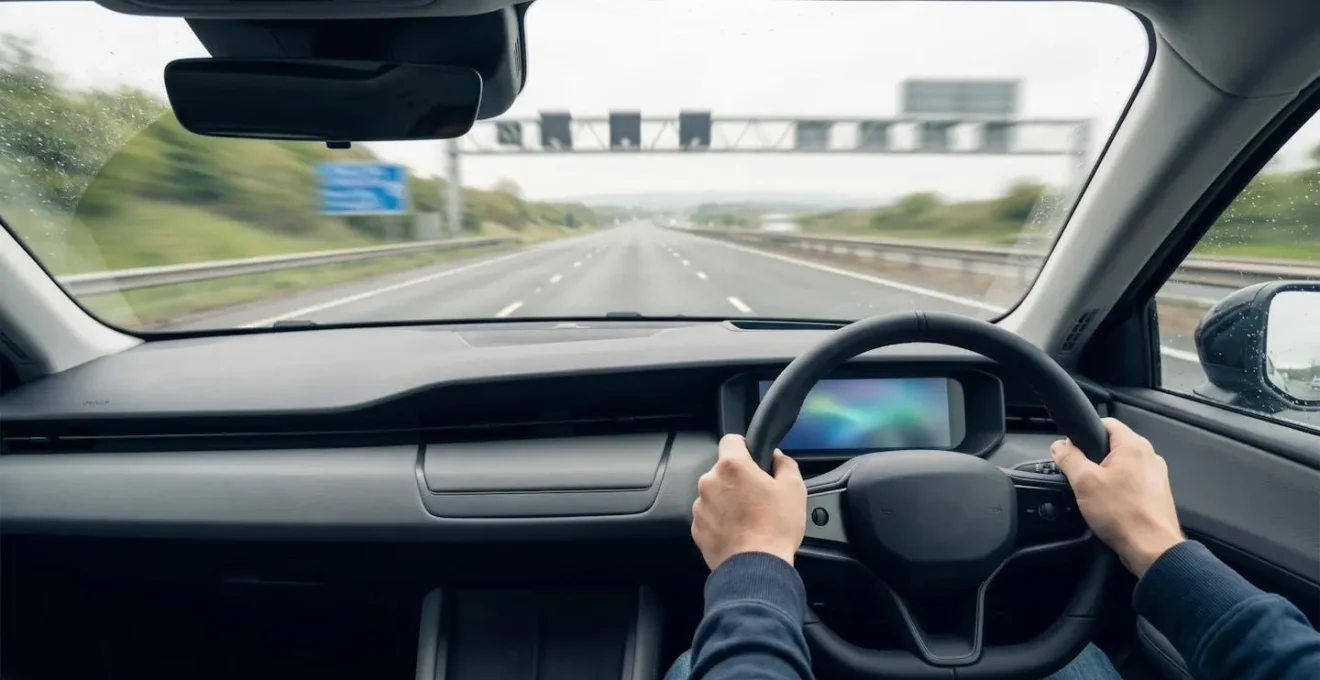
The greatest risk to your licence isn’t just using your phone, but the frustration from a failed voice command that tempts you to touch it.
- Unreliable voice commands increase cognitive load, a key factor in distracted driving incidents.
- Proactively configuring your iPhone’s settings *before* you drive is the only way to ensure a true “zero-touch workflow”.
Recommendation: Move beyond basic commands and focus on mastering the specific settings for contacts, apps, and emergency services to make Siri a reliable co-driver, not a liability.
The law is unforgiving. Since the 2022 rule changes, simply touching your mobile phone for almost any reason while behind the wheel in the UK can land you with a CU80 conviction. The consequences are severe: 6 penalty points and a £200 fine, and for new drivers, instant licence revocation. This has created a climate of fear, and rightly so. Many drivers believe relying on “hands-free” technology like Siri is a complete safeguard. However, this is a dangerous oversimplification.
The real-world problem isn’t just about making calls. It’s about the moment Siri misunderstands your request to play a song, fails to find a contact, or mangles a dictated message. In that split second of frustration, the temptation to grab the phone to “just fix it quickly” is immense. This is the critical failure point that leads to illegal actions. The truth is, true legal compliance and safety are not achieved by simply activating Siri; they are achieved by meticulously configuring your device to be so reliable that the temptation to touch it never arises.
This guide is not another list of “cool Siri tricks.” It is a technical briefing for responsible UK drivers. We will move beyond the basics and focus on the specific configurations and commands needed to master Siri’s failure points. We will address core tasks like messaging and music, delve into life-saving emergency functions, and tackle the most common source of frustration: Siri’s mispronunciation of names. The objective is to build a robust, zero-touch system that protects your concentration, your wallet, and your licence.
This article provides a detailed roadmap to mastering Siri for UK road use, ensuring you can operate essential functions without ever taking your hands off the wheel or your eyes off the road. Explore the sections below to build your expertise step by step.
Summary: Siri Voice Control: Your Guide to Staying Legal While Driving in the UK
- How to Dictate a WhatsApp Message via Siri Without Touching the Screen?
- Spotify or Apple Music: Which App Responds Better to Voice Commands?
- How to Get Siri to Remind You to Buy Milk When You Leave Work?
- The “Hey Siri, Call 999” Command: Does It Work on Locked Phones?
- How to Teach Siri to Pronounce Your Contact Names Correctly?
- Coffee Shop Card: How to Make Your Loyalty App Pop Up When You Walk In?
- Why Your “Plan B” Must Include a Paper List of Emergency Contacts?
- Smart Stacks: How to Make Your iPhone Suggest the Right App at 9 AM?
How to Dictate a WhatsApp Message via Siri Without Touching the Screen?
One of the most common temptations is replying to an urgent message. A quick glance, a swift tap – and you’ve broken the law. Mastering hands-free messaging is non-negotiable for any driver. While a small number of people are caught, with 0.28% of all drivers in England observed using a mobile phone in Autumn 2023, the risk of a momentary lapse is constant. A true zero-touch workflow for WhatsApp is not only possible but essential.
First, you must grant Siri permission to access WhatsApp’s data. This is a one-time setup that enables the integration. Go to your iPhone’s Settings, scroll down to WhatsApp, tap ‘Siri & Search’, and ensure ‘Use with Ask Siri’ is enabled. This is the foundational step. Once enabled, you can initiate the entire process by voice. The command is specific: “Hey Siri, send a WhatsApp to [Contact Name].”
After you invoke the command, Siri will ask, “What do you want to say?”. Dictate your message clearly. Siri will then read it back to you for confirmation and ask, “Ready to send it?”. You must respond with a clear “Yes” or “Send”. Saying anything else, like “Okay” or “Correct”, may not work and could create the very frustration we aim to avoid. Practice this sequence while parked until the phrasing becomes second nature. This “voice muscle-memory” is a key component of safe, hands-free operation.
Spotify or Apple Music: Which App Responds Better to Voice Commands?
Managing your in-car audio is another high-risk area for manual interaction. Fumbling with a playlist or searching for a podcast is a significant form of distracted driving. When it comes to voice control, not all music apps are created equal. Your choice of service can dramatically impact the reliability of hands-free commands and, consequently, your safety. The key difference lies in the level of integration with Apple’s iOS operating system.
As the Merge Screens Technology Review notes in their CarPlay comparison, this is one area where a clear winner emerges. Their analysis highlights the fundamental technical advantage of Apple’s own service:
Apple Music has the advantage here due to its deep integration with the Apple ecosystem
– Merge Screens Technology Review, Spotify vs. Apple Music on CarPlay: A Comparison
This “deep integration” means Siri can control Apple Music with simpler, more natural commands. You can say, “Hey Siri, play my ‘Morning Commute’ playlist,” and it will work seamlessly. For third-party apps like Spotify, you must add a specific suffix to your command, such as, “Hey Siri, play my ‘Morning Commute’ playlist on Spotify.” Forgetting this suffix is a common failure point, leading to Siri defaulting to Apple Music and causing driver frustration. While both are fully capable of hands-free operation, the cognitive load is inherently lower with Apple Music due to its native status.
This table, based on data from comparative analyses like those from Digital Trends, breaks down the practical differences for a UK driver.
| Feature | Apple Music | Spotify |
|---|---|---|
| Siri Integration | Native deep integration | Requires ‘on Spotify’ suffix in commands |
| Playlist Voice Command | Direct: ‘Hey Siri, play ‘ | Requires: ‘Hey Siri, play on Spotify’ |
| Command Accuracy | Higher – native iOS optimization | Moderate – third-party integration |
| CarPlay Auto-Play | Instant playback | Sometimes shows selection list first |
| UK Driving Law Compliance | Fully hands-free capable | Fully hands-free capable |
| Voice Search Complexity | Simpler commands | Longer command phrases needed |
How to Get Siri to Remind You to Buy Milk When You Leave Work?
Siri’s true power as a driver’s assistant extends beyond simple tasks. It can become a proactive partner by using location-based triggers. This is an advanced technique that significantly reduces mental load, as you can offload future tasks to Siri while you focus entirely on the road. The “geofencing” capability of the Reminders app allows you to set alerts that activate when you arrive at, or leave, a specific location.
The command structure is intuitive. For a simple task, you can say, “Hey Siri, remind me to buy milk when I leave work.” For this to function, your work address must be saved in your own contact card in the Contacts app. Siri uses this to know when you have left the geofenced area. The same applies to your home address for arrival-based reminders. This setup is a one-time action that unlocks a powerful set of automated prompts.
This functionality can be adapted for a wide range of UK-specific driving scenarios. Think of it as a pre-drive checklist you can set up verbally while already on the move. By using precise commands, you can build a safety net of reminders tailored to your journey. Here are some practical examples for UK drivers:
- MOT Prep: “Hey Siri, when I get home, remind me to check my tyre pressures before the MOT.”
- London Driving: “Hey Siri, when I arrive at [Central London Postcode], remind me to check the ULEZ charge.”
- Parking Admin: “Hey Siri, when I get to the NCP car park on High Street, remind me to open the PayByPhone app.”
- End-of-Drive Security: “Hey Siri, when I arrive home, remind me to take the sat-nav out of the car.”
- Journey Planning: “Hey Siri, when I leave work, remind me to fill up at the petrol station.”
Each of these commands outsources a piece of mental administration to your device, freeing up your cognitive capacity to concentrate on driving. It is the epitome of using technology to enhance, rather than compromise, road safety.
The “Hey Siri, Call 999” Command: Does It Work on Locked Phones?
In an emergency, the ability to call for help without fumbling with your phone can be the difference between life and death. The statistics are stark: in 2020, 17 people were killed and 114 seriously injured in Great Britain in accidents where a driver was using a mobile phone. Ensuring you can make an emergency call completely hands-free is arguably the most critical Siri configuration a driver can master.
The simple answer is yes, “Hey Siri, call 999” works on a locked iPhone. This is a core safety feature designed by Apple. It bypasses the need for Face ID, Touch ID, or a passcode. When you give the command, Siri will confirm your intention with a large on-screen prompt and a countdown, after which it will dial automatically. This is to prevent accidental calls while still allowing for rapid, voice-only activation in a genuine crisis.
However, simply knowing the command is not enough. A responsible driver must prepare their entire device for emergency scenarios. This includes enabling the correct settings and understanding other relevant UK emergency numbers. The command “Hey Siri, call emergency services” will also work, routing to 999 in the UK. This is a critical function that must be enabled and tested before it’s needed.
Your Emergency Siri Configuration Checklist
- Enable Locked Access: Go to Settings > Siri & Search and ensure the ‘Allow Siri When Locked’ toggle is switched on. This is the master switch for this feature.
- Test Emergency Calls: From your locked screen, say “Hey Siri, call 999” and confirm it initiates the call countdown. Cancel it before it connects. Also test “Hey Siri, call 111” (NHS non-emergency) and “Hey Siri, call 101” (Police non-emergency).
- Set Up Medical ID: Open the Health app and complete your Medical ID. Add your emergency contacts. UK paramedics are trained to look for this on a locked phone.
- Enable Emergency SOS: In Settings > Emergency SOS, enable ‘Call with Side Button’. This provides a non-verbal method for rapidly dialling 999 if you are unable to speak.
- Inform Your ICE Contacts: Let your “In Case of Emergency” contacts know they are listed, so they are not surprised if they receive a call from an emergency responder.
How to Teach Siri to Pronounce Your Contact Names Correctly?
This is the single biggest source of friction and frustration with voice control. It is the moment where the promise of a seamless hands-free experience shatters. You say, “Hey Siri, call Siobhan,” and it replies, “Calling See-oh-ban.” You repeat the command, more slowly. It fails again. After the third attempt, the temptation to grab the phone, open contacts, and tap the name manually becomes almost unbearable. This is the danger zone. The scale of this behaviour is alarming; analysis suggests there are more than 50,000 instances of people driving while using a hand-held phone every day in the UK.
The solution is to proactively teach Siri the correct phonetic pronunciation of names it struggles with. You can do this by saying, “Hey Siri, you’re not pronouncing [Contact’s Name] correctly.” Siri will then ask for the correct pronunciation. You say the name clearly, and Siri will offer several phonetic options to choose from. You can listen to each one and select the version that matches your pronunciation. This is a one-time fix per problematic contact that permanently improves Siri’s reliability.
The importance of this seemingly minor tweak cannot be overstated, especially in the multicultural UK where names like Jacek, Aoife, or Oladimeji are common. Every mispronunciation is a spike in cognitive load and a potential trigger for illegal phone handling.
Case Study: How Mispronounced Names Increase Driver Distraction
Research on mobile device distraction highlights a direct link between voice assistant failures and risky driver behaviour. When Siri fails to recognise or pronounce names, drivers experience heightened frustration and cognitive load. According to research from the British Safety Council, mobile device distraction is a contributing factor in a significant number of vehicle collisions. When a driver must repeat a command multiple times due to a pronunciation error with a name like ‘Siobhan’ or ‘Niamh’, the impulse to illegally pick up the phone and operate it manually rises dramatically. This creates a dangerous spiral where the technology designed to enhance safety becomes the catalyst for an offence, putting the driver at risk of the £200 fine, 6 penalty points, and potential licence revocation under the UK’s strict 2022 laws.
Coffee Shop Card: How to Make Your Loyalty App Pop Up When You Walk In?
While the title suggests a coffee shop, the underlying principle is a powerful tool for drivers: location-based app suggestions. Your iPhone can learn to associate certain apps with specific locations and proactively suggest them on your lock screen when you arrive. This is part of iOS’s proactive intelligence and can be harnessed to create a smoother, safer driving experience by reducing the need to hunt for apps once you’ve parked.
This feature works by observing your habits. If you frequently use the BP Pulse or Pod Point app when you arrive at a specific public charging station, your iPhone will eventually start suggesting that app on your lock screen as you pull into the car park. The same applies to parking apps like PayByPhone or RingGo. If you always use a particular app at your local train station car park, your iPhone will learn to have it ready for you. You are not “setting this up” with a command, but rather “training” the system through consistent use.
To ensure this works effectively, you must have the correct settings enabled. In Settings > Siri & Search, make sure ‘Suggestions when Sharing’, ‘Suggestions when Listening’, and ‘Show in App Library & Spotlight’ are all active. Crucially, scroll down to the specific app (e.g., BP Pulse) and ensure ‘Show App in Search’ and ‘Suggest App’ are also enabled. This gives iOS the permissions it needs to learn your behaviour and offer these helpful, context-aware shortcuts. For a driver, this means the moment you park and turn off your engine, the app you need to pay for parking or initiate charging is already waiting with a single tap, eliminating any post-drive screen time searching through folders.
Why Your “Plan B” Must Include a Paper List of Emergency Contacts?
In a world of total digital reliance, advocating for a paper backup can seem archaic. However, for a UK driver, it is an essential piece of resilience planning. Technology is not infallible. Phone batteries die, especially on long journeys or in M25 traffic jams. More critically, large parts of the UK, from the Scottish Highlands (e.g., the A82) to rural Wales and the Lake District, are notorious mobile signal “not-spots” where your phone becomes a useless brick.
There is another, more sobering reason for a physical backup. In the event of a serious road traffic accident, UK police procedure often involves seizing mobile phones as evidence. Your digital contact list, including your “In Case of Emergency” (ICE) contacts, becomes instantly inaccessible to you and to the emergency services trying to help you. A small, written list in your glovebox or wallet is not a sign of Luddism; it is a sign of intelligent preparation.
This physical list should be your ultimate fallback, the analogue tool that works when all digital systems have failed. It is the final layer in a robust safety strategy. Here are the non-negotiable items for your paper backup:
- Breakdown Service: Your AA, RAC, or Green Flag membership number and their 24-hour emergency phone number (e.g., AA: 0800 88 77 66, RAC: 0333 2000 999).
- Key Personal Contacts: The names and numbers of at least two “In Case of Emergency” (ICE) contacts. This should match the information in your phone’s Medical ID.
- Insurance Provider: The name of your car insurance company and their 24-hour claims line number.
- A Local Contact: If travelling far from home, the number of a friend, relative, or hotel in the area you are visiting.
Think of this not as a replacement for your digital tools, but as “digital forgiveness.” It is the plan that rescues you when the primary systems fail, ensuring you are never truly stranded or incommunicado.
To summarise
- True hands-free safety comes from pre-emptively fixing Siri’s failure points, not just using basic commands.
- Proactively teaching Siri pronunciations and using precise command syntax for apps like Spotify are essential to prevent frustrating failures.
- A robust safety plan includes both digital preparation (like setting up Medical ID and emergency calls) and an analogue backup (a paper list of contacts) for when technology fails.
Smart Stacks: How to Make Your iPhone Suggest the Right App at 9 AM?
The pinnacle of a zero-touch workflow is not just reacting to your commands, but proactively anticipating your needs. Smart Stacks, a feature of the iPhone home screen, and Siri Suggestions are designed to do just that. A Smart Stack is a collection of widgets that can be configured to show you the right information at the right time, based on your habits. For a UK driver, this can be configured into a powerful, automated commute dashboard.
Imagine this scenario: At 8:30 AM on a weekday, the Smart Stack on your phone automatically shows a Waze or Google Maps widget with the current traffic on your route to work. At 8:45 AM, as you approach the train station, it switches to the Trainline app widget, displaying your platform number. This is the power of time- and location-based suggestions. You can create a Smart Stack by long-pressing on your home screen, tapping the ‘+’ icon, and adding the ‘Smart Stack’ widget. You can then add widgets for your preferred navigation, music, and parking apps.
This can be taken a step further using the Shortcuts app. You can create an ‘Automation’ that triggers at a specific time or location. For example, you can set an automation that when your phone connects to your car’s Bluetooth at 9 AM, it automatically engages the ‘Driving Focus’ mode. This silences non-essential notifications and sends auto-replies, ensuring you comply with UK safety recommendations without having to remember to activate it manually. This level of automation is the ultimate goal: a system so well-configured that it defaults to safety, removing the driver from the decision-making loop once the journey has begun. Some practical examples for a UK commute include:
- Morning Motorway Check: Have Waze automatically suggested in your Smart Stack at 8:30 AM for M6 or M25 traffic status.
- Urban Cycle/Tube Leg: Configure the Santander Cycles or TfL Go app to appear when you arrive at a docking station or Tube station.
- Driving Focus Automation: Use the Shortcuts app to create an automation that turns on ‘Driving Focus’ the moment your phone connects to your car’s Bluetooth, guaranteeing a distraction-free start to your journey.
By investing a small amount of time in these one-off configurations, you build a system that makes legal compliance the path of least resistance. It moves you from a state of anxious reactivity to one of calm, prepared control, allowing you to focus on the one thing that truly matters: driving safely.