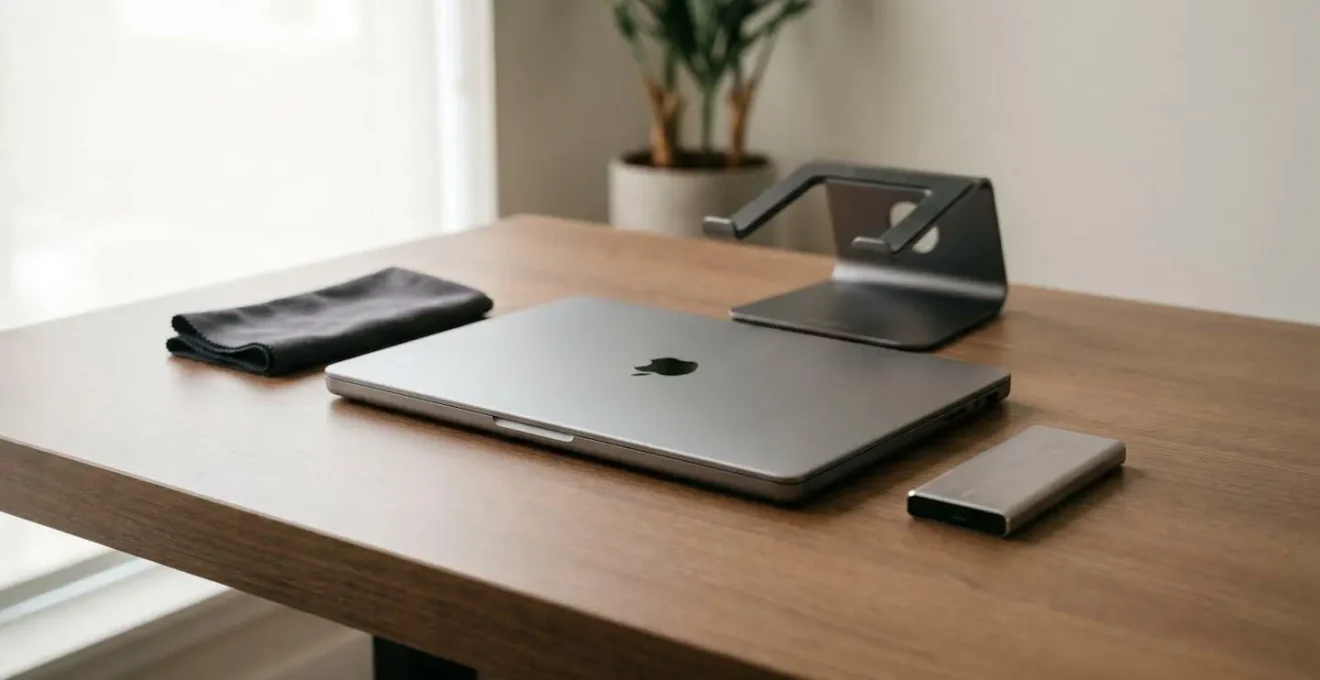
Your four-year-old MacBook Pro isn’t obsolete; it’s just not being managed correctly at a system level for demanding creative tasks.
- Performance loss is often due to thermal throttling during heavy use (like video calls or renders), not just “junk files.”
- Your SSD has a finite lifespan, measured in Terabytes Written (TBW), which is rapidly consumed by large project files and insufficient RAM forcing swap usage.
Recommendation: Shift from basic “cleaning” to a professional diagnostic routine: monitor your SSD’s health, manage application-specific caches, and understand your hardware’s real limits to extend its professional viability.
Your MacBook Pro, once a beacon of creative productivity, is now showing its age. The fans scream during client video calls, Photoshop beachballs on simple tasks, and the battery life is a shadow of its former self. For a freelance graphic designer in London, where every deadline counts and a new machine is a major financial hurdle, this performance decline isn’t just an annoyance—it’s a direct threat to your livelihood. The common advice to “clear your cache” or “manage startup items” feels woefully inadequate when facing the demands of Adobe Creative Cloud on a four-year-old machine.
While those tips have some merit, they fail to address the root causes of slowdown on aging professional hardware. The real bottlenecks aren’t just surface-level clutter; they are systemic issues developing deep within your machine. These include thermal throttling, where the processor intentionally slows down to prevent overheating, the physical wear and tear on your Solid-State Drive (SSD) from constant large file writes, and the performance penalty of “memory pressure” when 8GB of RAM is no longer enough for your multi-app workflow.
But what if the solution wasn’t a generic cleaning app, but a technician’s diagnostic mindset? This guide abandons the platitudes and provides a pro-level maintenance framework. We will diagnose the specific hardware and software conflicts that cripple a creative’s workflow. Instead of just telling you *what* to do, we’ll explain *why* it works, empowering you to manage your MacBook Pro not as a disposable consumer gadget, but as the essential professional tool it is.
This article will guide you through a series of specific, high-impact maintenance procedures. We will explore everything from managing CPU heat and SSD health to the real-world implications of your RAM and the proper care for your display and battery. The goal is to equip you with the knowledge to extend the useful, professional life of your current machine, saving you money and preventing critical downtime.
Summary: A Technician’s Guide to Reviving Your Aging MacBook Pro
- Why Your Mac Fans Spin Loudly During Video Calls and How to Fix It?
- The TBW Limit: How to Check If Your SSD Is Wearing Out?
- 8GB vs 16GB RAM: Is the Base Model Enough for Adobe Creative Cloud?
- The “Staingate” Risk: Why You Should Never Use Windex on a MacBook Screen?
- How to recalibrate Your MacBook Battery If the Percentage Jumps Erratically?
- Log Rotation: Why Your Server Runs Out of Disk Space Overnight?
- OLED vs Mini-LED: Which Is Better for Editing Photos on the Go?
- Why AMOLED Panels Offer Infinite Contrast Ratios for Late-Night Reading?
Why Your Mac Fans Spin Loudly During Video Calls and How to Fix It?
That jet-engine sound your MacBook Pro makes during a video call isn’t just an embarrassing interruption; it’s a critical symptom of thermal throttling. Modern video conferencing apps like MS Teams, Zoom, and Google Meet are surprisingly resource-intensive, heavily utilizing both the CPU and integrated GPU for video encoding and decoding. On an older Intel-based Mac, this sustained load generates significant heat. To compensate, the system ramps up the fans to maximum RPM. If cooling is insufficient, the processor will automatically reduce its clock speed to prevent damage, causing the stuttering and lag you experience.
A primary cause is a feature called Turbo Boost, which temporarily overclocks the CPU for a burst of speed but generates immense heat. This is often poorly managed in older, thinner chassis. As one user on an Apple Community forum noted about their MacBook’s performance with Microsoft Teams:
MS Teams triggers the Turbo Boost. Due to a design flaw the MBA 2020 just hasn’t got the proper CPU cooling to back up the Turbo Boost. I fixed the issue… by shutting down the Turbo Boost of the CPU… With the TB off the temperature lowers from 100C to 80C, so the fan doesn’t go crazy.
– User with MacBook Air 2020 i5 16GB, Apple Community Discussion Thread
To manage this, you must reduce the overall system load and improve cooling. This involves more than just closing a few browser tabs. The following steps provide a targeted approach to calm your fans and restore performance during calls:
- Identify Culprits with Activity Monitor: Before a call, open Activity Monitor (in Applications > Utilities) and go to the CPU tab. Sort by “% CPU” to see which processes are consuming the most resources and close them.
- Close Background Hogs: Shut down all non-essential applications, especially other creative software (like Adobe apps), cloud syncing services (Dropbox, Google Drive), and unnecessary browser tabs.
- Ensure Proper Airflow: Never use your laptop on a soft surface like a bed or couch. Always place it on a hard, flat surface (a desk or a laptop stand) to allow air to circulate through the vents on the bottom and back.
- Consider Disabling Turbo Boost (Intel Macs): For Intel-based Macs, using a third-party utility like Turbo Boost Switcher Pro to temporarily disable this feature during video calls can dramatically reduce heat and fan noise without a noticeable performance impact for that specific task.
- Perform Physical Cleaning: If your Mac is over four years old, dust buildup inside is inevitable. While a professional internal cleaning is best, you can use compressed air to carefully clear the external vents. This can significantly improve the heatsink’s efficiency.
The TBW Limit: How to Check If Your SSD Is Wearing Out?
For a creative professional, “free disk space” is only half the story. The more critical, and often ignored, metric is your Solid-State Drive’s (SSD) endurance. Unlike traditional hard drives, SSDs have a finite lifespan measured in Terabytes Written (TBW). Every time you save a large Photoshop file, render a video, or even when macOS uses the drive as virtual RAM (swap), you are consuming a small portion of your SSD’s total lifespan. For a graphic designer, this consumption is rapid; a single 4K video project can easily involve writing 100GB-200GB of data to your drive through project files, caches, and exports.
Once an SSD reaches its TBW limit, its cells can no longer reliably store data, leading to performance degradation, data corruption, or outright failure. On a four-year-old machine used for professional creative work, you could be closer to this limit than you think. Checking your SSD’s health is not a suggestion; it’s an essential diagnostic procedure. While macOS doesn’t provide a simple built-in tool, you can use a powerful command-line utility called `smartmontools`.
Installing and using it requires a few steps via the Terminal, but it provides a definitive report on your drive’s health:
- Install Xcode Command Line Tools by opening Terminal and typing `xcode-select –install`.
- Install the Homebrew package manager (if you don’t have it) by following the instructions on brew.sh.
- In Terminal, type and run: `brew install smartmontools && sudo smartctl –all /dev/disk0`.
- Enter your administrator password when prompted.
- Look for the “Percentage Used” or “Data Units Written” metrics in the report. A high percentage (e.g., over 80%) is a warning sign that your drive is aging.
If you’re nearing the limit, the best strategy is to offload write-intensive tasks. Using a high-speed external Thunderbolt NVMe SSD for your active projects and cache files can drastically reduce wear on your internal system drive, preserving it for the operating system and applications.
This approach not only extends the life of your internal SSD but can also improve performance, as external Thunderbolt drives can be just as fast, if not faster, than the internal storage on older MacBook models. It is a proactive investment in your machine’s longevity.
8GB vs 16GB RAM: Is the Base Model Enough for Adobe Creative Cloud?
The question of RAM is a constant debate, but for a creative professional on an aging MacBook, the answer is brutally clear: 8GB is a significant bottleneck. It’s not just about how many apps you can open; it’s about memory pressure and swap usage. When your active applications (like Photoshop and Illustrator) demand more RAM than is physically available, macOS compensates by using your SSD as temporary, or “swap,” memory. While this prevents an immediate crash, it comes at a huge performance cost. Your SSD, while fast, is orders of magnitude slower than actual RAM. This is the source of the stuttering, lag, and the dreaded beachball when you’re working with large files or multiple apps.
Furthermore, this constant writing to the swap file on your SSD accelerates its wear, directly impacting the TBW limit we discussed earlier. On modern MacBooks, RAM is soldered to the logic board, making post-purchase upgrades impossible. You must manage what you have. For a freelance designer, understanding the performance difference between 8GB and 16GB isn’t an academic exercise—it explains the daily frustrations you face.
The following table, based on user reports and performance benchmarks, illustrates how these two configurations handle typical Adobe Creative Cloud workflows.
| Configuration | Photoshop (Web Graphics) | Multi-app Workflow | 4K Video Editing | Memory Pressure | Recommendation |
|---|---|---|---|---|---|
| 8GB RAM | Works adequately for basic edits and web graphics | Relies heavily on swap for multiple Adobe apps | Performance degradation with cache/proxy files | High pressure during intensive tasks | Acceptable for light, single-app use only |
| 16GB RAM | Smooth performance with complex files | Can run Photoshop + Illustrator + InDesign simultaneously | Handles editing workflows without significant swap | Manageable pressure even with multiple apps | Minimum for serious creative work |
| 32GB RAM (ideal) | Overkill for Photoshop alone | Future-proof for evolving software demands | Supports uncompressed workflows and heavy renders | Low pressure across all scenarios | Best for professional multi-app workflows |
If you are on an 8GB model, your only strategy is aggressive management. This means quitting applications the moment you’re done with them, keeping browser tabs to a minimum, and using Activity Monitor’s “Memory” tab to identify and close any processes consuming excessive RAM. It’s a constant battle, but it’s necessary to keep the machine usable for professional work.
The “Staingate” Risk: Why You Should Never Use Windex on a MacBook Screen?
Proper maintenance extends beyond internal components; it includes physical care, especially for your display. Using the wrong cleaning products can cause irreversible damage. The most infamous example of this is “Staingate,” a widespread issue that affected the anti-reflective coating on MacBook Pro Retina displays for several years. This cautionary tale is a powerful reminder of the screen’s fragility.
Case Study: Apple’s “Staingate” and Anti-Reflective Coating Failure
Beginning with mid-2012 models, thousands of MacBook Pro users experienced what became known as “Staingate,” where the anti-reflective coating on their Retina displays would delaminate, creating ugly, permanent stains and patches. The causes were varied, including pressure from the keyboard on the closed lid, heat from the system, and, most critically, the use of harsh, third-party cleaning chemicals. The alcohol and ammonia in common cleaners like Windex would break down the delicate coating. Apple eventually launched a quality program offering free replacements for affected models within four years of purchase, but out-of-warranty repairs were costly, and the problem highlighted the importance of using only approved cleaning methods.
The lesson from Staingate is clear: your MacBook’s screen is not a simple piece of glass. It is a multi-layered component that is highly sensitive to chemical agents and physical pressure. To avoid costly damage, you must follow a strict, professional cleaning protocol. Using anything other than distilled water and a high-quality microfiber cloth is a gamble with a very expensive piece of hardware.
Your Action Plan: Professional MacBook Screen Cleaning Protocol
- Power Down Completely: Shut down your MacBook and unplug it from any power source. A black screen makes it easier to see smudges and dust.
- Use the Right Tool: Obtain two high-quality, lint-free microfiber cloths. One will be for damp wiping, the other for drying. Do not use paper towels, t-shirts, or any other material.
- Use Distilled Water Only: Lightly dampen one cloth with a small amount of distilled water. Never use tap water (which contains minerals), Windex, alcohol-based solutions, or any all-purpose cleaner. Never spray liquid directly onto the screen.
- Wipe Gently: Using the damp cloth, wipe the screen in gentle, circular motions. Do not apply significant pressure, as this can damage both the coating and the underlying LCD panel.
- Dry Thoroughly: Immediately use the second, completely dry microfiber cloth to buff away any remaining moisture, again using gentle, circular motions to prevent streaks.
This careful approach is the only way to ensure you are cleaning your screen without causing microscopic damage that can accumulate over time, preserving the clarity and value of your display.
How to recalibrate Your MacBook Battery If the Percentage Jumps Erratically?
After several years of use, you might notice your MacBook’s battery behaving erratically. It might jump from 30% to 5% in an instant or shut down unexpectedly even when the menu bar shows remaining charge. This isn’t always a sign that the battery itself has failed. More often, it’s an indication that the System Management Controller (SMC), the microchip that reports battery status to macOS, is miscalibrated. The battery has more or less charge than the system *thinks* it has. This can also lead to performance throttling, as the system may prematurely slow down the CPU to “conserve” a charge that doesn’t actually exist.
Recalibrating the battery re-synchronizes the SMC with the battery’s actual charge levels, restoring accurate percentage reporting and predictable performance. While newer macOS versions manage this partly in the background, a full manual recalibration cycle every few months can be highly effective for an older machine. It’s a simple, if time-consuming, process that requires no special software.
The goal is to take the battery through one complete, uninterrupted charge and discharge cycle. This allows the SMC to “re-learn” the battery’s upper and lower voltage limits.
Follow these steps precisely to ensure a successful recalibration:
- Full Discharge: Use your MacBook normally until the battery is completely depleted and it shuts down on its own. Do not charge it during this time.
- Let It Rest: Leave the MacBook turned off and unplugged for at least 5-8 hours. This allows the battery voltage to settle completely.
- Uninterrupted Charge: Connect the charger and charge the MacBook to 100%. Do not use the computer during this charging phase to ensure the cycle is uninterrupted.
- Conditioning Charge: Once it reaches 100%, leave it connected to the charger for an additional 2 hours. This “trickle charge” conditions the battery and gives the SMC ample time to register the fully-charged state.
- Resume Normal Use: You can now unplug and use your MacBook normally. The battery percentage should now be a much more accurate reflection of its true charge. For long-term health, enable “Optimized Battery Charging” in System Settings to reduce wear.
Log Rotation: Why Your Server Runs Out of Disk Space Overnight?
While the title mentions “Log Rotation,” a server concept, the underlying problem for a creative professional is identical: mysterious and rapid loss of disk space. You finish work with 50GB free, and the next morning you’re hit with a “Your startup disk is almost full” warning. The culprit isn’t system logs; it’s almost always the enormous and ever-growing cache files generated by applications like Adobe After Effects, Premiere Pro, and DaVinci Resolve. These apps create massive temporary files (previews, renders, waveform data) to speed up performance, but they often fail to clean up after themselves. It’s not uncommon for these caches to swell to over 100GB without your knowledge.
Running low on disk space is a critical performance issue. macOS needs at least 10-15% of your startup disk free to operate efficiently, for things like virtual memory (swap) and temporary system files. When space is tight, the entire system grinds to a halt. According to reports from third-party maintenance utilities, it’s not unusual for users to discover massive amounts of junk data on their first scan. For example, some tools report that users find an average of 10.5 GB of junk files, and for video editors, this figure can be much higher.
Manually purging these caches is one of the highest-impact maintenance tasks you can perform. You need to know where to look, as these folders are hidden deep within the user Library directory.
- Adobe After Effects Cache: In After Effects, go to Preferences > Media & Disk Cache. Here you can see the cache location and use the “Empty Disk Cache” button. Manually, the folder is typically at `~/Library/Caches/Adobe/After Effects/`.
- Adobe Premiere Pro Cache: In Premiere Pro, go to Preferences > Media Cache. Click “Delete” next to Media Cache Files. The default location is `~/Library/Application Support/Adobe/Common/Media Cache Files/`.
- DaVinci Resolve Cache: In Resolve, open Preferences > Media Storage. Your cache file location is listed there. Navigate to this folder in Finder (it’s often within `~/Library/Application Support/Blackmagic Design/`) and delete its contents.
- Configure Limits: To prevent this from happening again, go into each application’s preferences and set a maximum size for the disk cache (e.g., 50GB). This forces the application to purge its oldest cache files automatically once the limit is reached.
Making this part of a monthly maintenance routine will prevent performance degradation and free up gigabytes of valuable space on your SSD.
OLED vs Mini-LED: Which Is Better for Editing Photos on the Go?
For a photographer or designer, the display is the most critical interface. When considering a future upgrade or even an external monitor, the choice between OLED and Mini-LED technology is paramount. Both represent the pinnacle of modern display tech, but they offer different strengths and weaknesses for a professional photo editing workflow, especially on the go.
OLED (Organic Light Emitting Diode) displays are renowned for their “infinite” contrast. Because each pixel generates its own light, a black pixel is simply turned off, producing a true, absolute black. This is a massive advantage for photo editing, as it allows for incredibly precise evaluation of shadow detail and contrast. Colors are also exceptionally vibrant and accurate. However, OLED has two primary drawbacks for a creative pro. First is the risk of burn-in, where static UI elements (like Photoshop’s toolbars or a menu bar) can leave a permanent ghost image over time. Second, their overall peak brightness is generally lower than Mini-LED, which can be a problem when editing in a brightly lit environment or outdoors.
Mini-LED displays, like Apple’s Liquid Retina XDR, are a highly advanced form of LCD. They use thousands of tiny LED backlights grouped into local dimming zones. While they can’t turn off individual pixels like OLED, they can dim zones to near-black, producing excellent contrast and deep blacks with very little “blooming” or halo effect. Their main advantages are their extremely high peak and sustained brightness, making them superb for HDR content and for use in bright conditions. They are also completely immune to burn-in, making them a more durable and worry-free choice for applications with static interfaces.
The choice comes down to your priorities. If your primary concern is the absolute best contrast and shadow detail for controlled, indoor editing, OLED is technically superior. However, for a versatile, go-anywhere workhorse where durability and high brightness are just as important as color, Mini-LED presents a more practical and robust solution for the traveling creative.
Key Takeaways
- Performance on an aging Mac is a game of managing bottlenecks, not just cleaning files. Thermal throttling is a primary cause of lag during heavy tasks.
- Your SSD is a consumable with a finite lifespan (TBW). Creative work accelerates its wear, and monitoring its health is a critical diagnostic step.
- Insufficient RAM (e.g., 8GB) forces heavy reliance on slower SSD swap memory, crippling multi-app creative workflows and accelerating SSD wear.
- Physical care is non-negotiable. Use only distilled water and microfiber to clean the screen to avoid “Staingate,” and recalibrate the battery to ensure accurate reporting.
Why AMOLED Panels Offer Infinite Contrast Ratios for Late-Night Reading?
Late-night work sessions are a reality for most freelance creatives chasing a deadline. During these hours, eye strain becomes a significant factor affecting both comfort and productivity. This is where display technology, specifically AMOLED (Active-Matrix Organic Light Emitting Diode), offers a fundamental advantage for reducing eye fatigue. AMOLED is a type of OLED screen, and its secret to “infinite contrast” and eye comfort lies in its emissive nature: each pixel is its own tiny light source.
In a traditional LCD or even a Mini-LED screen, a backlight is always on, shining through a layer of liquid crystals to produce an image. To create black, the crystals must block as much of that light as possible, but some light always bleeds through, resulting in a dark gray rather than a true black. This backlight is a constant source of light hitting your eyes.
An AMOLED panel works differently. To display black, the pixels in that area simply turn off completely. They emit no light whatsoever. This is what creates the “infinite” contrast ratio—the mathematical ratio between the brightest white and the darkest black (which is zero light) is infinite. For a designer working late, this has a profound practical benefit, especially when using Dark Mode. When you view white text on a black background, only the pixels forming the text are illuminated. The vast majority of the screen is emitting no light, dramatically reducing the total amount of light entering your eyes compared to an LCD displaying the same image.
This pixel-level control results in less glare, less light bleed, and a much more restful viewing experience in a dark room. The crispness of text against a truly black background can reduce the cognitive load of reading and reviewing documents or code, allowing you to work longer and more comfortably. It transforms the screen from a constant, glaring light source into a precise canvas where light is used only where it’s needed.
By adopting this diagnostic, technician-level approach, you move beyond simple fixes and begin a holistic management of your professional hardware. This mindset—treating your MacBook Pro as a system of interconnected, aging components—is the key to extending its life, ensuring its reliability, and protecting your freelance business from the high cost of unexpected failure or a premature upgrade.