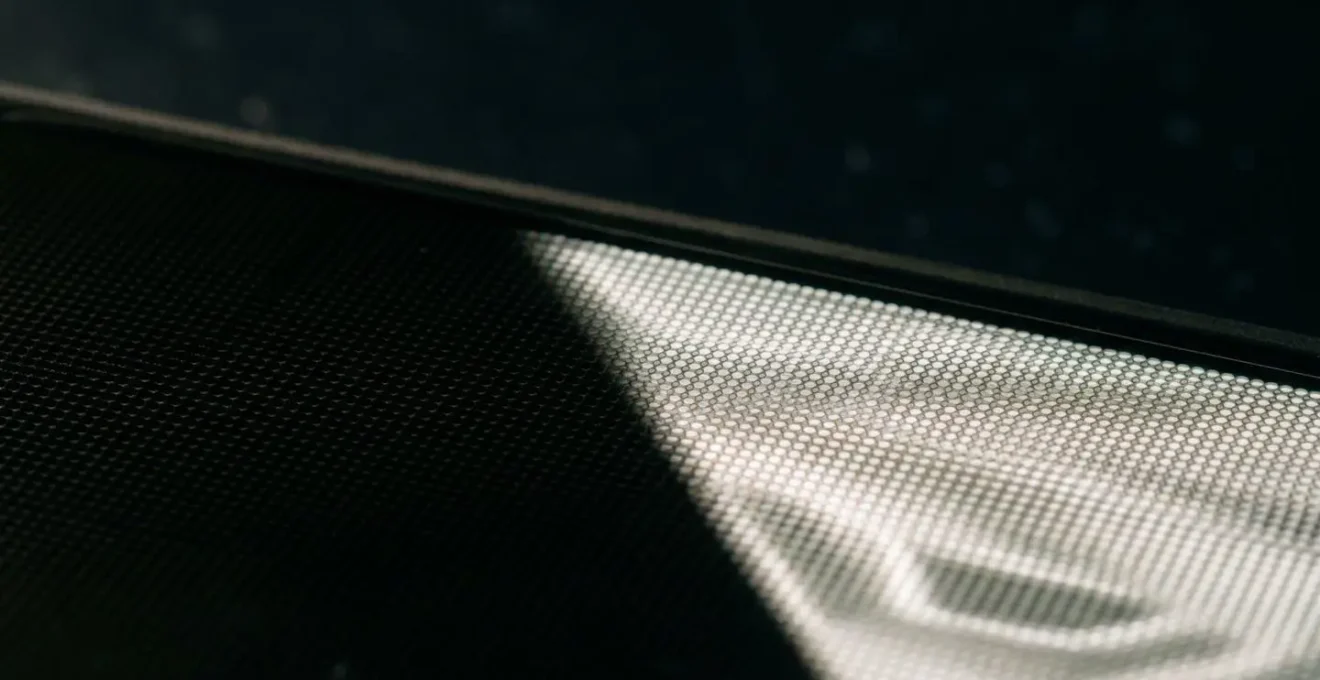
You’ve been told that Dark Mode is the ultimate fix for late-night reading eye strain. The truth is more complex. The real culprit is the subconscious “visual noise” from an LCD’s constant backlight, even in dark scenes. This article explains, from an engineering perspective, how AMOLED’s ability to turn individual pixels completely off creates a truly black canvas, eliminating this light contamination and offering genuine neuro-visual comfort that a simple software trick can’t match.
If you’ve ever found yourself squinting at your phone in a dark room, feeling that familiar sandy-eyed fatigue, you’re not alone. The default advice is almost always the same: turn on Dark Mode. It’s a helpful first step, but it often fails to address the root cause of digital eye strain, especially for those of us who are sensitive to light. The problem isn’t just about color inversion; it’s about the very nature of the light being projected into your eyes. Most users don’t realize that on a standard LCD screen, “black” is just an illusion—a dark grey filter trying to block a backlight that is always on. This leakage of light, a form of “light contamination,” creates a low-level visual noise that your brain has to constantly filter out, leading to fatigue.
But what if the solution wasn’t just about software, but about the fundamental hardware of the display itself? This is where AMOLED (Active-Matrix Organic Light-Emitting Diode) technology changes the game. Unlike LCDs that rely on a single, shared backlight, every single pixel on an AMOLED screen is its own microscopic light source. To display black, a pixel simply turns off. Completely. This isn’t a simulation of darkness; it is the absence of light. This capability, known as “infinite contrast,” is the key to unlocking true visual comfort for late-night reading. This article will deconstruct the engineering principles behind AMOLED, moving beyond the marketing buzzwords to explain how this technology directly impacts your visual system, from battery life and flicker to color accuracy and focus.
This guide delves into the core display technologies that define your mobile experience. We will explore the specific mechanisms that make AMOLED displays unique, compare them to their rivals, and provide practical advice to optimize your device for maximum comfort and performance.
Summary: Understanding Your Mobile Display’s Impact on Visual Comfort
- Why Dark Mode Saves 30% Battery on AMOLED but Nothing on LCD?
- How to Prevent Permanent Ghost Images on Your OLED Screen?
- OLED vs Mini-LED: Which Is Better for Editing Photos on the Go?
- The Screen Flicker That Causes Headaches for 10% of OLED Users
- How to Watch HDR Movies on Mobile Without Crushing the Shadow Details?
- Scheduled Summary: How to Catch Up on News Without Constant Interruptions?
- Zoom Testing: What Happens to Your Layout When a User Zooms to 200%?
- Focus Mode Configuration: How to Reclaim 2 Hours of Deep Work Daily?
Why Dark Mode Saves 30% Battery on AMOLED but Nothing on LCD?
The profound difference in how Dark Mode affects battery life between AMOLED and LCD screens lies in their fundamental architecture. An LCD panel is like a window with a massive, always-on floodlight behind it. To display an image, liquid crystals twist and turn to block or allow light to pass through color filters. A black pixel on an LCD is not truly black; it’s the result of the crystals trying their best to block that constant backlight. This means whether your screen is showing a bright white webpage or a “black” screen in Dark Mode, the backlight is consuming a significant and relatively constant amount of power.
In stark contrast, an AMOLED display is a city of millions of individual, self-contained lights. Each pixel generates its own light. To display white, the pixel is on at full power. To display black, the pixel simply switches off entirely. It consumes zero power. This is the simple genius behind Dark Mode’s efficiency on AMOLED. When you enable it, every black area on your screen corresponds to millions of pixels that have been turned off, directly reducing power draw. While the oft-quoted “30% savings” is an optimistic figure for a completely black screen, more realistic scenarios show tangible benefits. Research from Purdue University demonstrates that even at typical indoor brightness levels (30-50%), users can see average battery savings between 3% and 9%. This is a direct consequence of pixel-level luminance control, a principle that is not only efficient but also crucial for visual comfort.
How to Prevent Permanent Ghost Images on Your OLED Screen?
The term “burn-in” strikes fear into the hearts of many OLED owners, conjuring images of permanent, ghostly logos haunting their expensive screens. From an engineering standpoint, what’s happening is not a “burn” but rather differential aging. The “O” in OLED stands for “organic,” and these carbon-based compounds degrade over time with use. The blue subpixels, which require more energy to produce their light, tend to age the fastest. If a static image, like a status bar or a news channel logo, is displayed for hundreds or thousands of hours, the pixels in that area age unevenly compared to the rest of the screen, creating a permanent shadow or “ghost image.”
However, the fear is often disproportionate to the real-world risk for the average user, especially with modern devices. Extensive real-world testing found that it can take 2,000-5,000 hours of continuous, static content at high brightness to induce noticeable burn-in. For most people who use their devices for varied content, this is not a practical concern. Furthermore, manufacturers have implemented sophisticated, often invisible, mitigation strategies to combat this phenomenon. These are not simple software tricks but deep-seated engineering solutions designed to ensure panel longevity.
Modern displays employ a trio of protective measures. Pixel shifting subtly moves the entire image by a few pixels at regular intervals, which is imperceptible to the eye but ensures no single pixel is stuck displaying the same thing for too long. An Automatic Brightness Limiter (ABL) detects when a large portion of the screen is displaying a bright, static image and intelligently reduces the overall brightness to protect the pixels from being driven at maximum output for extended periods. Finally, panels run compensation cycles during standby, where the device scans for unevenly aged pixels and adjusts their voltage to maintain a uniform appearance, effectively healing early-stage image retention before it becomes permanent.
OLED vs Mini-LED: Which Is Better for Editing Photos on the Go?
For photographers and content creators, color accuracy is not a luxury; it’s a necessity. When choosing a mobile device for on-the-go photo editing, the debate often boils down to two leading technologies: OLED and Mini-LED. While both offer exceptional image quality, they achieve it through fundamentally different means, leading to distinct advantages depending on your working environment.
OLED technology, with its per-pixel illumination, offers an “infinite” contrast ratio and perfect black levels. This is a massive advantage when editing in a controlled, dimly lit environment. It allows you to see the truest representation of shadow detail without any “blooming” or “halo” effect, where light from bright areas spills over into adjacent dark areas. For cinematic or low-key photography, this pixel-level precision is unmatched. However, OLED’s primary weakness is its comparatively lower peak brightness and the theoretical risk of burn-in with static UI elements from editing software.
Mini-LED, on the other hand, is an evolution of traditional LCD technology. It replaces a handful of large backlights with thousands of tiny ones, creating hundreds or even thousands of “local dimming zones.” This allows for much higher peak brightness levels (often exceeding 2000 nits) and a very high contrast ratio, though not technically infinite. This makes Mini-LED displays superb for editing in bright, unpredictable environments like a sunny cafe or outdoors. While there can be some minor blooming around very high-contrast edges (like white text on a black background), they are completely immune to burn-in, offering peace of mind for professionals. The best way to understand the trade-offs is to see them side-by-side.
The following table, based on data from professional display specification analysis, breaks down the key differences for photo editing professionals.
| Specification | OLED | Mini-LED |
|---|---|---|
| Contrast Ratio | Infinite (0 nits black level) | 1,000,000:1 (with local dimming) |
| Peak Brightness | 800-1000 nits (typical) | 2000+ nits |
| Black Level | 0.0 nits (perfect black) | Variable (blooming possible) |
| Color Uniformity | Excellent per-pixel control | Delta E >3 in some zones |
| Viewing Angle Color Shift | Minor off-axis shift | Better color constancy |
| Burn-in Risk | Present with static content | None |
| Best Use Case | Dark-room cinematic editing | Bright environments, HDR gaming |
The Screen Flicker That Causes Headaches for 10% of OLED Users
For most users, dimming an OLED screen seems simple. But from an engineering perspective, lowering brightness on an OLED is a significant challenge. Because each pixel is its own light source, telling millions of them to emit just a tiny, stable amount of light is difficult and can lead to color inconsistencies at very low levels. To solve this, most manufacturers use a technique called Pulse-Width Modulation (PWM). Instead of lowering the voltage, the display keeps the pixels at a constant brightness but turns them on and off very rapidly. The “dimming” effect is achieved by varying the ratio of “on” time to “off” time. At high brightness, the pixels are on most of the time. At low brightness, they are off most of the time.
For the vast majority of the population, this happens so fast that the brain perceives a continuous, dimmer image. However, for a significant minority, this is a major problem. Researchers estimate that 10% to 30% of people are hypersensitive to this invisible flicker. Their brains subconsciously detect the rapid on-off cycling, which can lead to headaches, eye strain, nausea, and migraines. This is the “flicker-induced fatigue” that can make late-night reading on some OLED devices an uncomfortable experience, even with Dark Mode enabled.
In response to this issue, some manufacturers have implemented an alternative called DC Dimming. This method goes back to the more intuitive approach of lowering the voltage to the pixels to dim them. While this can slightly affect color accuracy at the lowest brightness levels, it completely eliminates the flicker from PWM. For users sensitive to PWM, the ability to enable DC Dimming can be a transformative feature.
Case Study: The Power of DC Dimming
A user with a Xiaomi Mi 9, a phone known for its aggressive PWM dimming, reported severe eye fatigue and headaches that made the device nearly unusable for them. After discovering and enabling the “Anti-flicker mode” (DC Dimming) in the developer settings, the user reported a complete elimination of their symptoms. They were able to use the device for hours without any discomfort, demonstrating how a software-enabled hardware feature can be a critical accessibility tool for PWM-sensitive individuals.
How to Watch HDR Movies on Mobile Without Crushing the Shadow Details?
High Dynamic Range (HDR) content is designed to deliver a visual experience that’s closer to what the human eye sees in reality, with brilliant highlights and deep, detailed shadows in the same frame. Watching an HDR movie on an advanced mobile display should be a breathtaking experience. Yet, many users find it underwhelming, with dark scenes turning into a murky, indistinct mess—a phenomenon known as “crushed blacks.” This often happens because the display technology is not capable of handling the two extremes simultaneously.
This is where AMOLED’s infinite contrast ratio becomes more than just a technical specification; it’s a prerequisite for proper HDR playback. To render a bright, explosive fireball next to the deep blackness of space, a display must be able to show a peak brightness level and a true black level at the same time, on adjacent pixels. LCD and even Mini-LED screens, with their shared backlights and dimming zones, will inevitably have some light “blooming” from the bright fireball into the black space, washing out the darkness into a shade of grey. This compromises the director’s intent and crushes the subtle details hiding in the shadows.
An AMOLED panel, by contrast, can have a pixel emitting at its peak brightness right next to a pixel that is completely switched off. As noted in DisplayMate’s analysis, when watching a sci-fi movie, “you’ll see true darkness instead of a washed-out gray.” This per-pixel control is what allows for the faithful reproduction of HDR content. When combined with high peak brightness capabilities—for instance, DisplayMate testing revealed a 1,308 nits peak brightness on the Galaxy Note 10+—the result is an image with dazzling highlights, perfect blacks, and all the nuanced detail in between, just as the creator intended. To avoid crushed blacks, ensure your device’s display is certified for HDR playback and always watch high-quality source material from services that support it.
Scheduled Summary: How to Catch Up on News Without Constant Interruptions?
In our hyper-connected world, the constant barrage of notifications can be a major source of stress and distraction. One of the most effective strategies for reclaiming focus is to batch-process information. Instead of reacting to every ping, you can use features like Android’s “Scheduled Summary” or iOS’s “Notification Summary” to receive a consolidated digest of non-urgent notifications once or twice a day. This allows you to catch up on your own terms, transforming a constant stream of interruptions into a calm, focused review session.
This is where display technology can have a surprising impact on cognitive efficiency. The goal of a summary is to quickly scan and absorb information. On an AMOLED screen, the presentation of this summary in Dark Mode is inherently more efficient from a neuro-visual perspective. The perfect black background makes text and icons “pop” with maximum contrast, reducing the cognitive load required to parse the information. Your brain doesn’t have to work to filter out the low-level “light contamination” of an LCD’s greyish-black background.
On an AMOLED screen, the high contrast between icons, text, and the true black background allows for faster scanning and information processing, making the catch-up process measurably more efficient.
– Cognitive Ergonomics Research, AMOLED Display Cognitive Load Analysis
This isn’t just about aesthetics; it’s about speed and comfort. When you only have a few minutes to catch up, the superior legibility of white or colored text on a true black background allows your eyes to move more quickly from item to item. Each notification is a distinct, clear element, free from the visual noise of backlight bleed. By combining a smart software feature like Scheduled Summary with the superior hardware of an AMOLED display, you create a system that is not only less distracting but also fundamentally more efficient for your brain.
Zoom Testing: What Happens to Your Layout When a User Zooms to 200%?
Web and app accessibility standards mandate that content should be perfectly legible and usable when zoomed to 200%. This is a critical feature for users with low vision, but its implementation reveals fascinating differences at the subpixel level of display technologies. What happens to text clarity when you magnify it on an AMOLED screen versus an LCD?
The answer lies in the subpixel layout. Most LCDs use a simple RGB Stripe layout, where each pixel is composed of distinct, equal-sized red, green, and blue subpixels. This creates a sharp and consistent grid. Many AMOLED displays, however, use a PenTile arrangement to improve longevity and power efficiency. In this layout, pixels share subpixels (often the more durable red and green ones) with their neighbors, and the blue subpixels are larger but less numerous. At standard viewing distances, this is unnoticeable. But when you zoom in to 200%, the difference can become apparent. The non-uniform grid of a PenTile layout can sometimes lead to slight color fringing or a “fuzziness” on the edges of highly magnified text, as rendering engines struggle to anti-alias perfectly on the irregular pattern. In contrast, the rigid grid of an RGB stripe LCD often maintains slightly better text sharpness at extreme magnification.
This is a classic engineering trade-off: PenTile AMOLEDs sacrifice some subpixel density for better power efficiency and a longer lifespan, a trade-off that is beneficial 99% of the time. However, for developers and designers, it means that ensuring text clarity at 200% zoom requires careful testing and adherence to best practices that account for this specific hardware characteristic.
Action Plan: Your 200% Zoom Accessibility Checklist
- Enable Text Reflow: Ensure your content automatically re-wraps within the viewport when zoomed. This prevents the need for horizontal scrolling, which is a major accessibility barrier for low-vision users on narrow mobile screens.
- Use Scalable Vector Graphics (SVG): Replace raster icons (like PNGs) with SVG formats. This ensures that all interface elements, not just text, remain perfectly crisp and sharp at any magnification level, avoiding pixelation on high-PPI AMOLED screens.
- Maintain Minimum Touch Targets: Interactive elements like buttons and links must remain physically large enough to be tapped accurately at 200% zoom. Adhere to a minimum target size of 44×44 CSS pixels.
- Test with PenTile-Aware Rendering: During development, verify that text anti-aliasing algorithms are working correctly on AMOLED devices. Specifically check for color fringing on fine lines and small text at high zoom levels and adjust font-smoothing properties if necessary.
- Prioritize Contrast Ratios: At 200% zoom, text can become thicker and elements closer together. Ensure that your text-to-background contrast ratios still meet WCAG AA or AAA standards to maintain legibility for all users.
Key takeaways
- True black on AMOLED isn’t a feature, it’s the absence of light, which is the key to reducing subconscious visual noise and eye strain.
- Modern OLEDs use sophisticated engineering (pixel shifting, compensation cycles) to make burn-in a non-issue for most users.
- PWM flicker is a real cause of headaches for a subset of users; DC Dimming is the engineering solution to look for if you are sensitive.
Focus Mode Configuration: How to Reclaim 2 Hours of Deep Work Daily?
In the battle for our attention, the most powerful weapon our devices wield is color. Bright, saturated app icons and notification badges are designed by neuro-marketers to trigger a dopamine response, compelling us to tap, swipe, and scroll. One of the most effective ways to reclaim your focus is to neutralize this weapon. By enabling “Focus Mode” or “Bedtime Mode” and setting the screen to greyscale, you strip away the enticing colors, making your phone instantly less interesting and less distracting.
When this software strategy is combined with AMOLED hardware, it becomes doubly effective. Not only does the greyscale image reduce the psychological pull of your apps, but it also provides a significant power-saving benefit. On an AMOLED panel, displaying a greyscale image is inherently more efficient than a full-color one. This is further enhanced because many greyscale modes use a true black background. The result is a device that not only helps you focus but also extends your battery life during long work sessions. Testing by display experts confirms that an AMOLED screen showing a full-black screen experiences a 30-50% reduction in power consumption compared to showing a white screen.
The synergy between software and hardware creates a powerful tool for productivity. A case study involving the Galaxy S24 Ultra, which uses an advanced M12 AMOLED panel, showed that using greyscale mode during a two-hour deep work session could save enough power to add 12-15 minutes of additional battery life compared to an LCD. This is the perfect marriage of technology and mindfulness: the screen’s greyscale nature calms your mind, while its underlying efficiency preserves the device’s energy. It transforms your phone from a constant source of distraction into a muted, dedicated tool for the task at hand, allowing you to enter a state of deep work without completely disconnecting.
By understanding the engineering behind your screen, from pixel-level power control to flicker mitigation, you can configure your device to work with your biology, not against it. The next step is to actively apply these settings, test what works for your eyes, and transform your phone or tablet into a tool for true comfort and focus.