Getting full fibre is a permanent upgrade to your home’s infrastructure, and where the engineer drills the hole has long-term consequences for your Wi-Fi and home aesthetic.
- The key to a successful installation is choosing the Optical Network Terminal (ONT) location yourself for optimal Wi-Fi, not just for the engineer’s convenience.
- A true full fibre connection requires a new approach to cybersecurity, as your home’s network becomes an ‘always-on’ target for automated threats.
Recommendation: Use the pre-installation checklist in this guide to strategically plan your fibre cable’s entry point before the engineer even rings your doorbell.
The notification has arrived: Openreach is scheduled to upgrade your home to full fibre. For many, this brings a mix of excitement for gigabit speeds and a distinct sense of unease. The primary concern we hear from residents isn’t about technology; it’s about the physical process. Where will they drill? What box gets installed on my wall? Will it be an eyesore? These are valid questions because an FTTH (Fibre-to-the-Home) installation isn’t like getting a new router; it’s a permanent modification to your property.
Many guides will give you a simple checklist: be at home, have a power socket ready. But this advice is incomplete. It positions you as a passive bystander in a process that will define your home’s digital connectivity for the next decade. The real key to a successful, stress-free installation is to move from a passive mindset to one of active, strategic planning. This isn’t just about getting a faster connection. It’s about laying a new network foundation for your home, and the decisions you make before and during the engineer’s visit are critical.
This guide, written from the perspective of field operations experience, will empower you. We’ll go beyond the basics to explain why this upgrade is fundamentally different from your old “fibre” connection. We will walk you through how to choose the perfect entry point, understand the contract traps, and, crucially, how to secure the powerful new digital gateway you are about to install. It’s time to take control of your upgrade.
To help you navigate this transition, we’ve structured this guide to cover every stage of the process, from understanding the technology to securing your newly upgraded network.
Summary: A Homeowner’s Guide to the Openreach Full Fibre Upgrade
- Why Your “Fibre” Broadband Is Still Slow Uploading Large Files?
- How to Choose the Best Entry Point for the Optical Network Terminal?
- CityFibre vs Openreach: Who Offers Better Reliability in Your Area?
- The “Re-contracting” Trap When Upgrading to Full Fibre With Your Current ISP
- How to Verify You Are Getting the Gigabit Speed You Pay For?
- The Bluetooth Vulnerability That Thieves Use to Open Smart Locks
- Password vs SSH Key: Why You Should Disable Password Login Immediately?
- Implementing Robust Cybersecurity Protocols for UK SMEs Without a Dedicated IT Team?
Why Your “Fibre” Broadband Is Still Slow Uploading Large Files?
One of the most common points of confusion is the difference between your current “fibre” and the “full fibre” you’re about to receive. If you already have a fibre connection, why is the disruption of a new installation necessary? The answer lies in a single, crucial component: a strand of copper wire. Most “fibre” broadband packages in the UK are actually FTTC (Fibre-to-the-Cabinet). This means a fibre optic cable runs to the green cabinet on your street, but the final, critical leg of the journey into your home uses your old copper phone line.
This copper “last mile” is a significant bottleneck, particularly for upload speeds. While download speeds on FTTC can be respectable, the physics of sending data over old copper severely limits how fast you can upload. This is why video calls can sometimes stutter, cloud backups take forever, and sending large work files feels painfully slow. According to technical analysis, FTTC upload speeds typically range between 5-10Mbps, a fraction of the download speed. In a real-world scenario, a business located just 500 meters from its street cabinet saw uploads drop to as low as 8-13Mbps, crippling its ability to use cloud services effectively.
The FTTH (or FTTP – Fibre-to-the-Premises) upgrade you are scheduled for eliminates this bottleneck entirely. A continuous strand of glass fibre runs directly from the exchange into your home, connecting to a new Optical Network Terminal (ONT). This enables symmetrical speeds, meaning your upload speed can be as fast as your download speed—up to 1000Mbps (1Gbps). This is not just an incremental improvement; it is a fundamental change in capability, transforming your connection from a passive content consumption tool to a powerful two-way gateway.
How to Choose the Best Entry Point for the Optical Network Terminal?
This is the most critical decision you will make during the entire installation process. Where the engineer drills the small hole (about 10mm wide) and installs the ONT box will dictate your home’s Wi-Fi performance and aesthetic for years to come. Do not leave this decision solely to the engineer, whose priority might be the quickest and easiest installation path. Your priority should be the long-term performance and look. The ONT is a small white or black box (roughly the size of a modern router) that requires its own power socket. It is the device that converts the light signals from the fibre optic cable into an electrical signal your router can use.
To make the best choice, think of the ONT not as an internet box, but as your home’s new digital gateway. It should ideally be placed in a central location, close to where you use the internet most. Hiding it in a garage or at the furthest point of the house because it’s an easy entry point for the cable can lead to poor Wi-Fi coverage. You need to balance the external entry point with the ideal internal location. The fibre cable itself is thin and white, making it relatively easy to route discreetly along skirting boards or door frames if necessary.
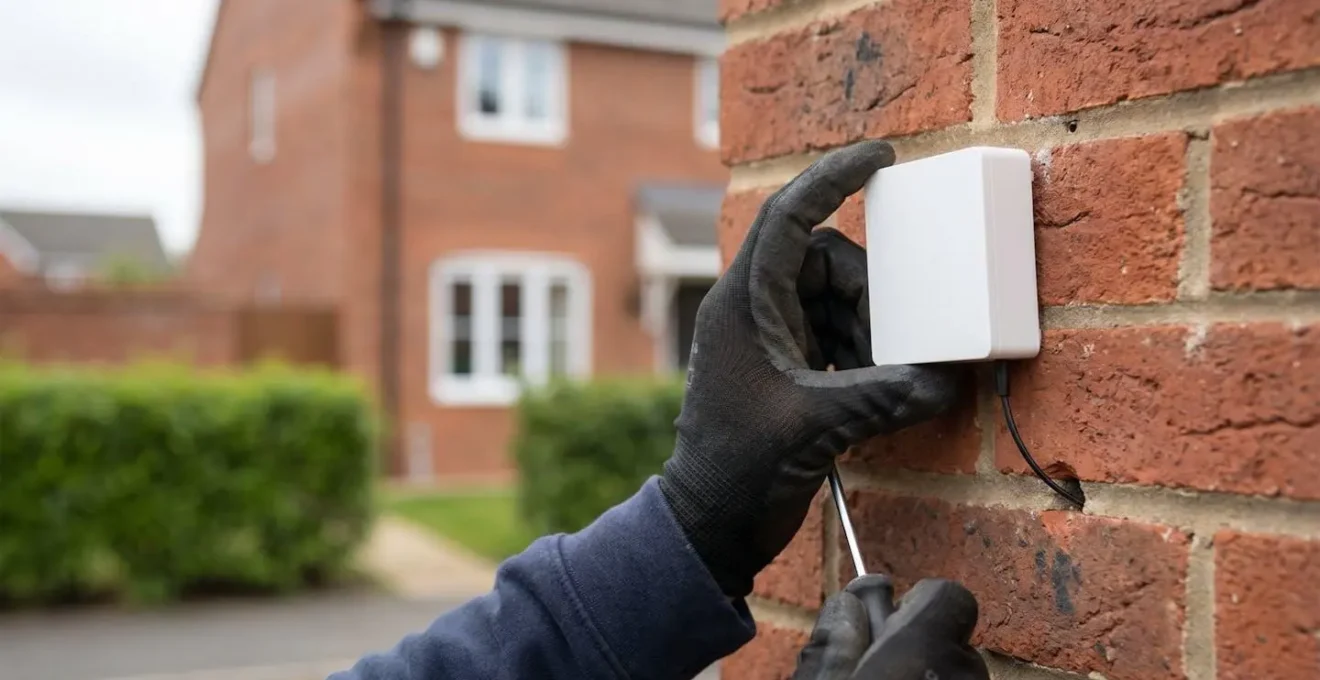
As you can see, the ONT is a discrete unit, but its placement is paramount. A decision-maker over 18 must be present for the entire appointment (which can take 4-6 hours) to discuss options with the engineer and approve the final location. If you are renting, you must have your landlord’s permission for the drilling in advance. Use the following audit plan to prepare.
Your Action Plan for ONT Placement
- Survey Entry Points: Identify 1-2 potential spots on an external wall where the cable could enter, considering both discretion and a direct path to the interior.
- Inventory Power & Devices: Locate the nearest double power socket to your ideal internal spot. Note the distance to devices that need a wired connection (PC, gaming console, TV).
- Assess for Coherence: Choose a central location that aligns with your home’s main Wi-Fi usage areas (e.g., a living room or home office) for the best wireless coverage.
- Plan for Aesthetics: Pre-visualise the cable’s path from the entry point to the ONT. Plan a route along skirting boards or door frames to maintain your home’s appearance.
- Finalise Your Plan: Have your preferred and backup locations ready to discuss with the engineer, ensuring you are present to give the final approval.
CityFibre vs Openreach: Who Offers Better Reliability in Your Area?
While Openreach is the most well-known network provider, responsible for the majority of the UK’s broadband infrastructure, they are not the only player. In over 80 cities, you may find your FTTH service is being delivered by CityFibre, a major alternative network (“alt-net”). While the installation experience is broadly similar, the underlying network architecture and the Internet Service Providers (ISPs) available to you differ. Understanding which network serves you is key to knowing your options.
Openreach operates a vast wholesale network, supplying FTTP services to over 600 ISPs, including major players like BT, Sky, TalkTalk, and EE. CityFibre also operates a wholesale model but has a more selective list of partners, including Vodafone, Zen Internet, and Giganet. The most significant technical difference is that CityFibre’s network is 100% FTTP, whereas Openreach still manages a mix of modern FTTP and legacy FTTC. For content creators or those working with large files, CityFibre’s network has a distinct advantage: CityFibre offers symmetrical bandwidth with upload speeds matching download speeds (up to 900Mbps or more), whereas Openreach’s common gigabit service is often asymmetrical, capped at 110Mbps upload.
In terms of pure FTTP reliability, both networks are exceptionally robust, with uptime typically exceeding 99.6%. The following comparison, based on a recent analysis of UK broadband providers, breaks down the key differences.
| Feature | Openreach | CityFibre |
|---|---|---|
| UK Coverage | 18-20 million premises (60%+ UK) | 5-6 million premises (15-20% UK) |
| Network Model | Wholesale to 600+ ISPs (BT, Sky, TalkTalk, Plusnet, EE) | Wholesale to select ISPs (Vodafone, Zen, Giganet) |
| Infrastructure Type | Mixed: Modern FTTP + Legacy FTTC in some areas | 100% FTTP (pure fiber, no copper) |
| Speeds | FTTP: Up to 1Gbps download / 110Mbps upload (asymmetric) | FTTP: Up to 2.5Gbps download / 900Mbps upload (symmetric) |
| Reliability (FTTP) | Uptime: 99.6-99.9% typical / Latency: 5-10ms | Uptime: 99.6-99.9% typical / Latency: 5-10ms (often slightly lower) |
| Installation Time | 2-4 weeks booking / 4-6 hours engineering visit | 3-6 weeks booking / 4-8 hours engineering visit |
| Geographic Focus | Comprehensive: Cities, towns, rural | Urban concentration: 80+ cities, zero rural |
The “Re-contracting” Trap When Upgrading to Full Fibre With Your Current ISP
Once the technical aspects are understood, you must navigate the commercial side. If you are upgrading with your current ISP (e.g., moving from BT’s FTTC to BT’s FTTP), be aware of the “re-contracting trap.” Many customers assume the upgrade is a simple modification to their existing plan. However, in most cases, agreeing to an FTTH installation will trigger a brand new 18 or 24-month contract. This is a critical detail that is often buried in the terms and conditions.
This can be particularly disadvantageous if you were out of contract or nearing the end of your term, as it removes your leverage to negotiate a better deal or switch providers. ISPs often present the upgrade as a “no-brainer” with an attractive introductory monthly price, but this can lock you into a higher price later in the new, extended term. Before you agree to anything over the phone or online, you must arm yourself with the right questions. Being out of contract gives you maximum power; use it to ensure you are getting the best possible total value, not just a low initial monthly fee.
Before contacting your ISP, check their website for deals offered to new customers for the same FTTH service. This is your benchmark. If they are unwilling to match it for you, a loyal customer, it may be more cost-effective to switch to a competitor. Always ask for a written quote that clearly details all costs over the full contract term. Here are the essential questions to ask:
- Does agreeing to this FTTH upgrade start a completely new 24-month contract term?
- What is the exact monthly price after the introductory offer period ends?
- Can you match the new customer offer currently advertised on your website?
- Will my current contract end date be honored, or will upgrading trigger early termination fees on my existing plan?
- Can you provide a written quote showing the installation cost, the monthly price for the entire contract, and the total contract value?
How to Verify You Are Getting the Gigabit Speed You Pay For?
The installation is complete, the engineer has left, and your new gigabit-capable router is blinking away. The final step is to verify that you are receiving the speeds you’ve been promised. However, simply running a speed test over Wi-Fi on your phone is not an accurate method and will likely lead to disappointing results. To properly test a gigabit connection, you must eliminate all potential bottlenecks within your own home network first.
The only reliable way to test your true incoming speed is with a wired connection. Connect a modern computer (with a gigabit network port) directly to your ISP’s router using a high-quality Ethernet cable (labelled Cat5e or, preferably, Cat6). Wi-Fi speeds are affected by distance, wall materials, and interference from other devices, so testing over Wi-Fi is a test of your home network, not your internet connection. Even with a perfect wired connection, don’t expect to see exactly 1000Mbps. As technical documentation explains, gigabit connections never test at precisely 1000Mbps due to network overhead. A healthy gigabit connection will typically test in the range of 930-950Mbps.
If your wired test shows these speeds but your Wi-Fi is slow, the issue lies with your home setup (router position, device limitations), not with Openreach or your ISP. Follow this diagnostic process to get an accurate reading:
- Connect Directly: Use a wired Ethernet cable from your computer directly to one of the LAN ports on your ISP’s router. Bypass Wi-Fi completely.
- Check Your Hardware: Ensure your computer has a gigabit (1000Mbps) network card and you are using a Cat5e or newer Ethernet cable.
- Isolate the Test: Close all other applications, especially streaming services, cloud sync software (like Dropbox or OneDrive), and downloads on the testing computer.
- Triangulate Results: Run tests on at least two different reputable platforms (e.g., Ookla’s Speedtest and Fast.com) and compare the results.
- Test at Different Times: Run tests in the morning, afternoon, and during peak evening hours (8-10 pm) to check for any network congestion.
The Bluetooth Vulnerability That Thieves Use to Open Smart Locks
Your new full fibre connection doesn’t just deliver speed; it creates a powerful, always-on network foundation. This makes it the perfect platform for building a smart home, with devices like smart locks offering convenience and remote access. However, this convenience comes with new security considerations. As your home’s “digital gateway” is now permanently connected to the internet, any vulnerabilities in your smart devices can become potential entry points for intruders.
Smart locks, particularly those relying on Bluetooth for keyless entry, are a prime example. The adoption of these devices is rising rapidly; according to smart home security research, 11% of U.S. households already use them, with adoption expected to grow significantly. While many high-quality locks use strong AES encryption, cheaper or poorly implemented models can be susceptible to attack. The primary threat is a “man-in-the-middle” attack, where a thief can intercept and replay the Bluetooth signal used to unlock your door.
Case Study: The Risk of Unencrypted Bluetooth Communication
Academic research demonstrated that smart locks using Bluetooth without proper, up-to-date encryption are vulnerable. In the study, researchers were able to capture the ‘unlock’ command sent from a smartphone to the lock. By re-broadcasting this captured signal, they could open the door without authentication. The key takeaway was the critical importance of network segmentation. By placing IoT devices like smart locks on a separate “guest” Wi-Fi network, you can prevent a compromised lock from giving an attacker access to more sensitive devices on your main network, such as laptops or file servers.
The lesson here is one of symmetrical responsibility. The power of your new connection must be matched by a proportional increase in your attention to security. Choosing reputable smart device brands and properly configuring your network are no longer optional extras; they are fundamental to keeping your home secure.
Password vs SSH Key: Why You Should Disable Password Login Immediately?
For the growing number of “prosumers”—home users running their own servers, Network Attached Storage (NAS), or custom network hardware—a full fibre connection is a game-changer. The high symmetrical speeds make hosting services or accessing files remotely incredibly fast and efficient. However, this also paints a larger target on your network. Your static or long-held IP address will be constantly scanned by automated bots searching for open ports and weak, password-protected services.
The single most important security upgrade you can make in this environment is to abandon password-based remote access in favour of SSH key authentication. A password, even a complex one, can eventually be broken by a persistent brute-force attack. An SSH key pair is different. It consists of a private key, which you keep secure on your client device, and a public key, which you place on the server. The server will only grant access to a client that can prove it possesses the corresponding private key. This proof is done via a cryptographic challenge-response that is mathematically impossible to brute-force.
Implementing this is a two-step process. First, you configure your server to accept key-based logins. Once you have tested and confirmed that you can log in successfully with your key, you then take the crucial second step: you edit the SSH configuration file (sshd_config) to completely disable password authentication. This single action eradicates the threat of password-guessing bots entirely. Anyone attempting to connect without a valid key will be rejected instantly, without even being prompted for a password. This is the professional standard for securing servers, and with an always-on gigabit connection, it should become the standard for any security-conscious home user with remotely accessible devices.
Key takeaways
- Your old “fibre” (FTTC) is slow for uploads because the final connection uses copper wire; new “full fibre” (FTTP) uses glass all the way, enabling symmetrical speeds.
- You must actively choose the location for the new ONT box to ensure optimal Wi-Fi coverage; don’t leave this critical decision to the engineer alone.
- An FTTH upgrade almost always triggers a new 18 or 24-month contract. Question your ISP rigorously to avoid getting locked into a bad deal.
Implementing Robust Cybersecurity Protocols for UK SMEs Without a Dedicated IT Team?
The transition to full fibre has profound implications for the thousands of UK small and medium-sized enterprises (SMEs) and sole traders running their businesses from home. An FTTH connection provides the enterprise-grade speed needed to compete, but it also exposes the home office to enterprise-grade threats. With no dedicated IT team, the responsibility for security falls squarely on the business owner. Implementing a few robust protocols is not just good practice; it’s essential for protecting client data and business continuity.
The first line of defense is the router itself. The default admin password supplied with the ISP’s router must be changed immediately. This prevents anyone from easily accessing your network’s control panel. Next, leverage the “Guest Network” feature. This powerful tool creates a second, isolated Wi-Fi network. All your business-critical devices (laptops, servers) should be on the main, secure network, while all personal and less secure smart home devices (TVs, speakers, smart locks) should be relegated to the guest network. This network segmentation means that even if a smart lightbulb is compromised, the attacker cannot “see” or access your work computer.
Finally, embrace the “always-on” nature of the connection with an always-on security posture. This means enabling multi-factor authentication (MFA) on every single cloud service you use—email, accounting software, CRM, and cloud storage. It also means using your fantastic new upload speed to implement an automated, encrypted cloud backup solution for all critical data. An FTTH connection is a powerful business asset, but it demands a foundational level of cyber hygiene to be used safely.
By taking a proactive and strategic approach, from planning the physical installation to implementing a robust security framework, you transform the FTTH upgrade from a simple utility installation into a powerful and secure foundation for your home and business’s digital future. The next logical step is to put this knowledge into practice by evaluating the specific needs of your own property and digital life.